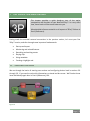
1
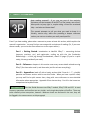
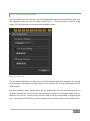
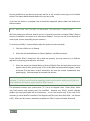
Activities such as Play, Stop, and many
other operations normally affect just one
output or the other, as determined by
the Output Mode you choose.
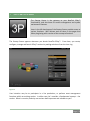
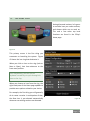
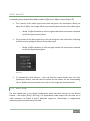
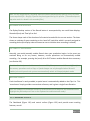
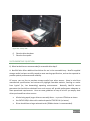
In most cases, the current Output Mode
is selected using the control surface,
although you may use either the
Dashboard controls located at the
bottom of the Replay Desktop or
equivalent keystroke shortcuts (see
Appendix B, Keystroke Shortcuts), as
well.
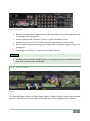
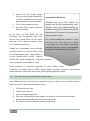
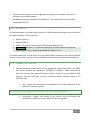
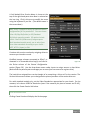
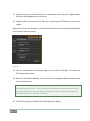
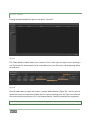
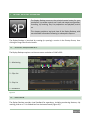
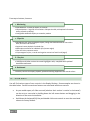
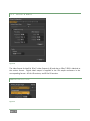
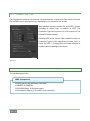
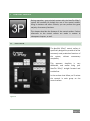
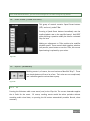
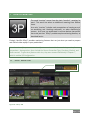
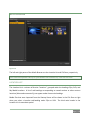
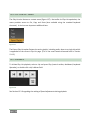
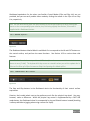
Figure 104
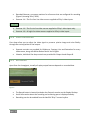
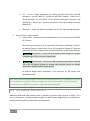
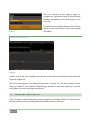
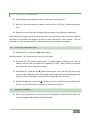
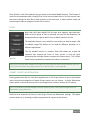
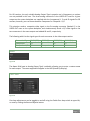
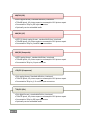
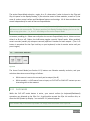
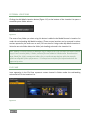
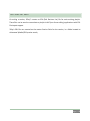
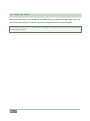
Figure 105
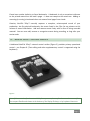
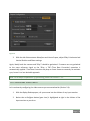
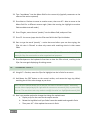
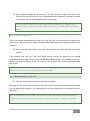
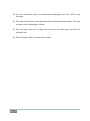
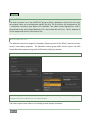
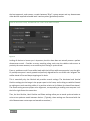
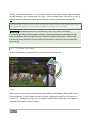
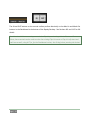
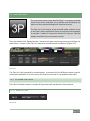
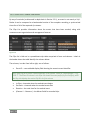
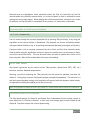
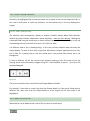
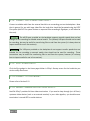
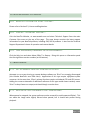
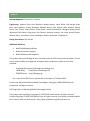
As you would expect, pushing the control surface button labeled A causes ensuing operations to
govern Output A. Likewise, pushing B directs operations to Output B.
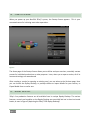
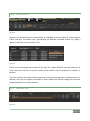
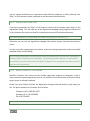
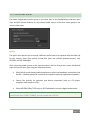
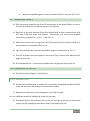
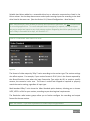
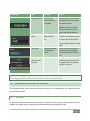
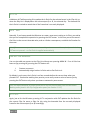
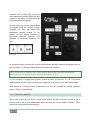
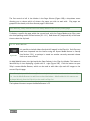
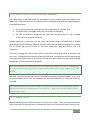
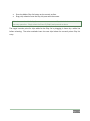
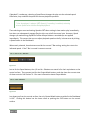
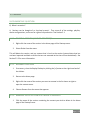
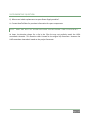
Note: Conveniently, a supplementary output section labeled AUX (Auxiliary) automatically
updates to show the display for your current Output Mode – A or B.
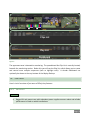
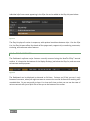
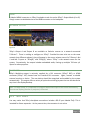
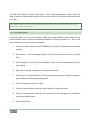
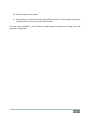
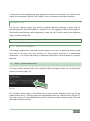
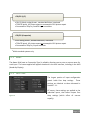
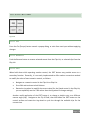
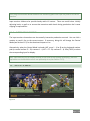
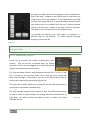
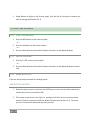
It’s also possible to engage both primary outputs at once, by pressing “A + B”. This button
behaves rather like the Caps Lock key on your keyboard, continuing in force until pressed again.
We’ll discuss A + B mode further momentarily, but first let’s consider an equally important
matter – 3Play’s Control Modes.
11.2 CONTROL MODES
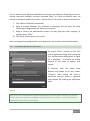
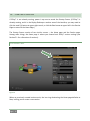
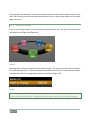
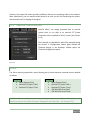
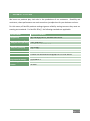
We’ve seen how to tell the 3Play™ system which output we wish to control, but we’ve yet to
discover how to tell it which audio/video source we want the current output to display. That’s
where the Control Mode comes into play.
Page | 114