1
ProView 2.2x User’s Guide
__________________________________________________________
CHAPTER 3: ESTABLISHING COMMUNICATION
T
his chapter explains how to connect to the ProControl unit using ProView by local serial cable and by
remote modem.
By itself, ProView does not reveal very much about your site’s operation. It must be connected to the
ProControl unit in order to yield any data.
On-Site Local Connection
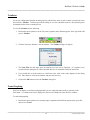
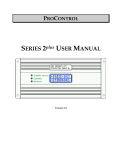
To establish a local connection to a ProControl equipped with serial port, perform the following:
1. Use the local serial cable supplied with the ProControl to connect the computer you are using to a
ProControl unit. One end of the cable terminates with a female 9-pin connector. Use this end to plug
into the serial port or USB-to-Serial adapter on your computer. The other end of the serial cable is
terminated with a 9-pin RJ-45 connector. Use this connector to plug into the “RS-232/Serial” port on
the right hand side of the ProControl unit.
!
!
!
Be sure to disconnect the serial cable from the ProControl unit after you are finished. If you do not,
remote communications and alarm reporting will not be possible.
If the ProControl unit is powered OFF for any reason, wait 45 seconds after power up (3 minutes for
a cellular data unit) before plugging in the cable to attempt a local connection. Otherwise, the
ProControl’s modem may not be properly configured.
If you have a ProControl unit with Ethernet communications, consult the Ethernet Quick Start Guide
for local connection information.
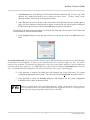
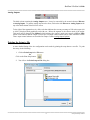
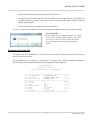
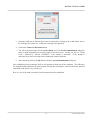
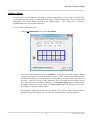
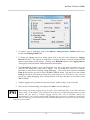
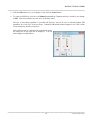
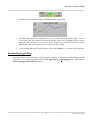
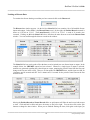
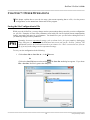
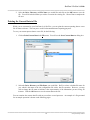
2. Click on Local Connection in the Communications menu. You can also use ALT-C.
Or
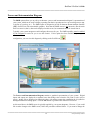
Click on the Local Connection toolbar button.
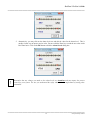
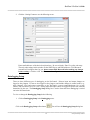
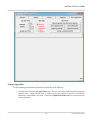
You will see the Local Communications dialog box.
__________________________________________________________
16
8100\pv220man\pv220man