1
Chapter 7 Customizing FlexPro
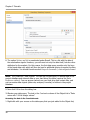
Renaming a Custom Toolbar
You can rename any custom toolbar that you have created. However, you cannot
rename a built-in toolbar that comes with FlexPro.
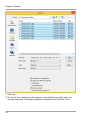
1. In the View menu, point to Toolbars and then click on Customize.
2. Click on the Toolbars tab.
3. Under Toolbars, click on the custom toolbar that you want to rename.
4. Click on Rename.
5. Enter a name for it under Toolbar name and then press ENTER.
Note: The user interface of FlexPro View cannot be customized.
Restoring Original Settings for Buttons, Commands or Toolbars
Restoring Original Settings for a Menu
1. In the Tools menu, click on Customize and then on the Menus tab.
2. Click on the name of the menu to be restored under Show menu for.
3. Click on Reset.
Restoring the Default Buttons and Menus on a Built-In Toolbar
1. In the Tools menu, click on Customize and then click on the Toolbars tab.
2. Click on the name of the toolbar to be restored under Toolbars.
3. Click on Reset.
Note: You cannot reset a custom toolbar.
Restoring the Default Settings for a Built-In Toolbar Button or Menu
Command
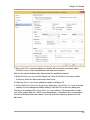
1. In the Tools menu, click on Customize.
2. Make sure the toolbar you want to change is visible:
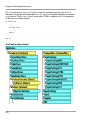
1. In the Customize dialog box, click on the Toolbars tab.
2. Check the box for the toolbar that you want to display.
418