1
Chapter 3 Data Management
settings are optimized for the highest level of ease of use and robustness. Please note
the following if you want to optimize FlexPro for large volumes of data or for high data
throughput.
Project Database Format and Operating Mode
The standard way that FlexPro operates is to work with a temporary copy of the FlexPro
project database and to save it first where you specify by using the Save Project
Database command. When working with large volumes of data, you should create the
database and save it in the In several folders and files at the preferred location on
your hard drive before actually starting to work with it, then open it in For direct
editing mode:
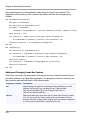
1. Start FlexPro to obtain an empty project database.
2. Select Save As from the File menu.
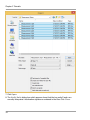
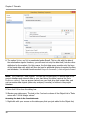
3. In the Save As dialog box, select the hard drive folder in which the project database
is to be saved.
Note: You should save the project database to a local hard drive and not in a folder on
your network.
4. Now enter the desired name in the File Name field.
5. Select In several folders and files as the storage format and then click Save.
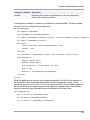
6. Now click on Open Project Database from the File menu.
7. In the Open dialog box, select the project database that you just saved.
Note: The project database file extension is .fpd. In the same folder is a subfolder of
the same name with the file extension .db. This folder will later contain all objects stored
as files.
8. Select the mode Open for direct editing.
The project database is now saved and can be used.
Deactivating Global Link Correction When Renaming Objects
If you rename an object in a FlexPro project database, FlexPro searches the entire
project database for objects that have references to this object in order to correct them.
This can take a lot of time if the project database is large.
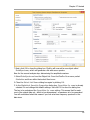
1. Select Options from the Tools menu.
65