1
Using the Security System
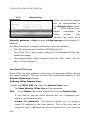
Newly
imported
Up2Date
packages
are
presented
with
their
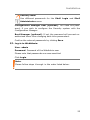
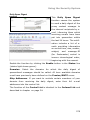
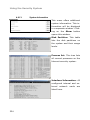
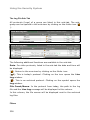
respective version number and file name in the Unapplied Up2Dates
table. Further information is available by clicking the Info button.
Note that the Unapplied Up2Dates in the table have not yet been
installed yet!
If you are using the HA system, unapplied updates will be listed in
the Unapplied Up2Dates Master window.
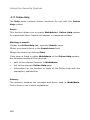
Loading System Up2Dates from a local disk:
The filename of an Up2Date update consists of the version number,
tar to signify it is an encrypted archive file, and the file extension .
gpg.
1.
Open the Up2Date Service menu in the System tab.
2.
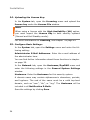
In the System Up2Date window, click on the Browse button
next to Import from File.
17.
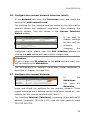
In the File Upload window, choose the Up2Date packages
you would like to load and click on the Open button.
Important Note:
When using Microsoft Windows, make sure not to use a UNC
Path. Instead, choose the updates by using the Look in option.
18.
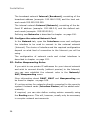
In the System Up2Date window, next to Import from File,
click Start.
Successfully loaded updates will appear in the Unapplied
Up2Dates window with the version number and the file name.
Further information is available by clicking the Info button.
Note that the Unapplied Up2Dates in the table have not yet been
installed yet!
If you are using the HA system, unapplied updates will be listed
in the Unapplied Up2Dates Master window.
19.
Repeat steps 2 through 4 until all Up2Date packages have
been imported.
51