1
The Moving Pixel Company CPhyScopeDecoder User’s Manual. – Rev. 2.1 -- 7/9/14
records other than packet data bytes, including LP states, HS preamble, HS sync, and HS
postamble records.
3.2.2.2.24 State Fields
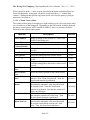
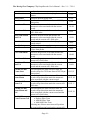
Depending on the maximum lane count supported, there may be up to four State fields:
“State0”, “State1”, “State2”, “State3”. The value displayed in these fields is the decoded
wire-state associated with the record for lanes 0-3 respectively. These fields apply to
records other than packet data bytes, including LP states, HS preamble, HS sync, and HS
postamble records.
3.2.2.3 PH Field Display
In CSI, the mnemonics displayed for PH fields include “Reserved”, “DataID”, “Param1”
and “Param2”, “WordCnt0”, “WordCnt1”, “PH CRC0”, “PH CRC1”, “Sync0”. In the
mnemonic string for these PH fields, the value that is displayed depends on the setting of
the “Show All PH In HS Packets” check-box option (Options tab).
If this option is checked, then all PH field mnemonics will be displayed and the values
shown will be the actual data values decoded from the PH. On the other hand, if this
option is not checked, the values shown will be taken from a PH that has a correct
PHCRC, if one exists (otherwise, values from the first PH are shown).
For the column fields themselves that are associated with the PH, note that these fields
(“VC”, “DataType”, “PHCRC”, “ExpPHCRC”, and “PHCRCOk”) always use values
from a PH with a correct PHCRC, if possible.
3.2.2.4 Trigger and Cursors
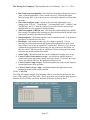
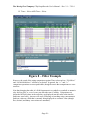
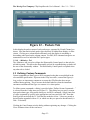
The hardware trigger record and two cursor records can be displayed in the listing grid,
changing the background shading of their associated records. The trigger record
indicates the location of the hardware trigger for capture and is a static fixed position that
cannot be changed but can be used as a reference for time measurement and Goto
operations. Its Trig field will be set to 1.
Cursors are enabled by checking the associated checkbox in the cursor panel to the right
of the listing grid and can also be controlled from the cursor panel control (see Cursor
Panel section for more details). The current cursor positions and the delta time between
them are displayed above the listing grid, using the current global time reference set in
the time field radix context menu.
Cursor related functions are also available in the column context menu available by rightclicking in any grid cell (except the radix sub-header row). In particular, the user can
select “Goto Cursor1” or “Goto Cursor2” to scroll the listing grid to the record location
of the indicated cursor. Also, if the context menu is brought up from a non-header cell,
the “Move Cursor1 Here” and “Move Cursor2 Here” options are also available.
3.2.2.5 Views
A main feature of the disassembly window is to allow the user to set criteria for filtering
records, only displaying a subset of acquired records from the disassembly view. This is
done through several mechanisms:
- Page 16 -