1
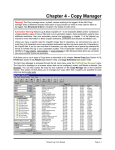
6.01 Log Editor (cont) Selecting Items on the Log To highlight (select) more than one line on the log for some action (such as cut-and-paste), use the Ctrl][Left-Click] keys simultaneously on each individual line or hold the right mouse button down while you move the mouse over the lines to be selected. Printing the Log In the Log Editor, click [Print] [Log] in the Log Editor to print your Log. See Log Page Setup to design the printed Log Page. [Print][Preview Log] displays on-screen a preview of the way the printed log will look. You can also print the Log Diagnostics that includes the contents of the Time Errors, Copy Errors, and Break Errors tabs. Log Edit Menu In the Log Editor, the Edit menu can be displayed by [Right-Clicking] on any logged item. This menu has many useful commands such as: Clipboard Commands Cut, Copy, and Paste Log Item Commands Add, Edit, Swap, Delete, Insert Blank Line(s), Find View Commands OrderLine, History-PlayTimes, Listen Item Activity Log Shows user changes to this log item Rearranging Items on the Log In the Log Editor, you may drag and drop items from one place on the Log to another by holding the left mouse button down until you have moved the item to where you'd like it to appear. When you release the mouse button, the item will drop into that slot. If you drop it onto an existing item, that item [and all following items up to the first blank line] will be pushed down a line to accommodate the moved item. Swapping Items on Log In the Log Editor, you can use the [Ctrl] key combined with [Left-Click] of the mouse to highlight 2 items to automatically swap log positions. Then click [Edit][Swap Log Items] to automatically swap the items' positions on the log. This only works when you have exactly 2 lines highlighted using [Ctrl][Left-Click]. Inserting/Deleting Lines on Log In the Log Editor, to add a blank line into the Log, highlight the spot where you'd like it to appear and click on the menu [Edit][Insert Blank Line(s)] or [Edit][Delete Line(s)]. Undo Log Edit In the Log Editor, you may click [Edit][UnDo] to reverse the most recent Log edit. Search for Items on Log In the Log Editor, click [Find] to search for any logged item. Page 6-4 Natural Log User Manual