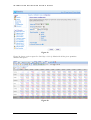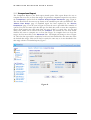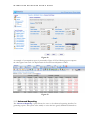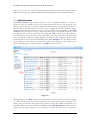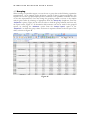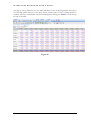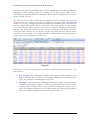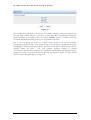
1
I N T E R A C T I V E R E P O R T I N G U S E R ’ S G U I D E Volume 2 I N T E R A C T I V E R E P O R T I N G Sales Analysis and Reporting Products INTERACTIVE REPORTING VERSION 3.2 USERS’ MANUAL I N T E R A C T I V E R E P O R T I N G U S E R ’ S G U I D E INTERACTIVE REPORTING Interactive Reporting User’s Guide Interactive Reporting Ltd., 2009 1 Great Island Enterprise Park • Ballincollig • Cork Phone +353-21-4850455 • Fax +353-21-4850454 • Web http://www.interactivereporting.com I N T E R A C T I V E R E P O R T I N G U S E R ’ S G U I D E Table of Contents OVERVIEW ...................................................................................................................................... 3 GETTING STARTED ....................................................................................................................... 4 1.1 CHOOSE REPORT....................................................................................................................... 5 1.2 TOP 10 FAVORITES ................................................................................................................... 5 1.3 ABOUT....................................................................................................................................... 6 1.4 CHANGE PASSWORD.................................................................................................................. 6 1.5 LOGOUT .................................................................................................................................... 6 GENERATING WIZARD REPORTS.............................................................................................. 7 2.1 REPORT TYPE ............................................................................................................................ 7 2.2 STANDARD REPORT ................................................................................................................... 8 2.3 CHOOSING THE DATE RANGE ................................................................................................... 9 2.4 FILTERING DATA .................................................................................................................... 11 2.5 NOT FILTER ............................................................................................................................ 11 2.6 SEARCH ................................................................................................................................... 11 2.7 ADD NUMERIC FILTER............................................................................................................ 13 2.8 CHOOSE REPORT CONFIGURATION......................................................................................... 14 2.9 CHART REPORT ....................................................................................................................... 16 2.10 PIVOT REPORT ...................................................................................................................... 19 2.11 COMPARISON REPORT........................................................................................................... 22 2.12 ADVANCED REPORTING ........................................................................................................ 23 2.13 VIEW FAVORITES .................................................................................................................. 24 GENERATING ADVANCED REPORTS ..................................................................................... 27 3.1 REPORT TYPES ........................................................................................................................ 29 3.2 REPORT SELECTION ................................................................................................................ 29 3.3 REPORT PARAMETERS ............................................................................................................ 29 3.4 REPORT VARIABLES ................................................................................................................ 29 1 I N T E R A C T I V E R E P O R T I N G U S E R ’ S G U I D E 3.5 REPORT ORDERING – ORDER BY ............................................................................................ 30 3.6 REPORT GROUPING – GROUP BY ............................................................................................ 30 3.7 QUANTITY OF DATA DISPLAYED – VIEW BY ........................................................................... 30 3.8 REPORT DATES ....................................................................................................................... 30 3.9 PROPERTIES ............................................................................................................................ 30 3.10 CUSTOMISE LOOK AND FEEL ................................................................................................ 31 3.11 REPORT FILTERS .................................................................................................................. 31 3.12 SEARCH ICON ........................................................................................................................ 32 3.13 RANGE SELECTION ............................................................................................................... 32 VIEWING REPORTS ..................................................................................................................... 33 4.1 STANDARD REPORT ................................................................................................................. 33 4.2 REPORT VARIABLES ................................................................................................................ 34 4.3 INTERACTIVE REPORTING BUTTONS ....................................................................................... 35 4.4 BREADCRUMBS ....................................................................................................................... 39 4.5 NAVIGATION FILTERS ............................................................................................................. 39 4.6 REPORT RESULTS .................................................................................................................... 40 4.7 GROUPING............................................................................................................................... 43 4.8 PIVOT REPORT ........................................................................................................................ 44 4.9 CHART REPORT ....................................................................................................................... 48 4.10 COMPARISON REPORT........................................................................................................... 52 GETTING HELP ............................................................................................................................ 54 2 I N T E R A C T I V E R E P O R T I N G U S E R ’ S G U I D E Overview INTERACTIVE REPORTING Version 3.2 Overview What All the Excitement is About... M aking the right decisions based on the best information obtainable is critical to the survival of every enterprise. INTERACTIVE REPORTING is a revolutionary new and powerful set of tools, designed to enable managers obtain the best data to support their business decisions. INTERACTIVE REPORTING applications can generate versatile data reports covering all your company’s activities and can be readily exported into other systems. This manual documents how to get started with INTERACTIVE REPORTING and produce precision targeted sales reports within minutes. The software outlined in this manual will enable you to select the data you want to see and the format in which you want to see it presented. You will be able to drill down into your organisation’s data to review all aspects of performance; make comparisons; generate detailed visual displays and reports; compare fields, dates, costs, margins and much, much more. INTERACTIVE REPORTING Version 3.2 has been designed to provide managers with the versatility to look at their organisation’s performance in new ways, enabling them to make the absolutely best informed decisions at all times. Whether you want to interpret your sales, stocks, costs, margins, revenues, staff performances or trends, INTERACTIVE REPORTING will enable you to make direct and instant comparisons using up to five separate fields which you can select by day, week, month, quarter or year and compare with any period you choose, enabling you to instantly identify every possible trend effecting your organisation’s performance. The following pages will show you how to select, filter, display, report and drill into your organisation’s data. We think you will find it surprisingly easy to use, and surprisingly helpful in running your business in the future. John Sullivan CEO INTERACTIVE REPORTING 3 I N T E R A C T I V E R E P O R T I N G U S E R ’ S G U I D E Chapter 1 Getting started Your Journey Begins... T o start using INTERACTIVE REPORTING, you’ll need to have a Login Name and Password assigned to you by your system administrator. These will give you access to INTERACTIVE REPORTING and the sales data appropriate to your needs. Figure 1 Simply open your favourite web browser (i.e. Explorer, Firefox etc) and navigate to the (your system administrator will give you the URL web address), Figure 1. INTERACTIVE REPORTING Login Screen Enter the Login Name and Password that your system administrator has given you, and click ‘Login’ (in the above example, user jbloggs is signing-in). 1 1 [Please note that for the remainder of this Manual our examples will be drawn from an enhanced version of the Microsoft’s Northwind Traders sample database.] 4 I N T E R A C T I V E R E P O R T I N G U S E R ’ S G U I D E Once you have signed-in, you will be taken straight to one of two screens. If you have more than one report available you will be directed to the ‘Choose Report’ page, otherwise you will be directed straight to the ‘Report Type’ page. The Company name will be seen on the bottom right corner of the page. This will be present at the same position in every page of INTERACTIVE REPORTING. The ‘IR Links’ sidebar menu INTERACTIVE REPORTING: provides a list of related links associated with the general use of • The ‘IR Website’ link redirects to the INTERACTIVE REPORTING web page. • The ‘User Manual’ link provides access to the online documentation. • The ‘Administration’ REPORTING. link redirects to the administration part of INTERACTIVE 1.1 Choose Report In the ‘Choose Report’ section, Figure 2, there is a list of reports for the user to select from. Each report has two links associated with it. This first link is the Report Name, for example Northwind Demo, which when clicked it directs the user to the wizard pages to generate less complex reports. The second link is the ‘Advanced’ text, which directs the user to the advanced report generation page. This step is intended for users who are quite familiar with INTERACTIVE REPORTING and computer systems. Figure 2 1.2 Top 10 Favorites The ‘Top 10 Favorites’ task bar at the left side of the ‘Choose Report’ page, Figure 2, allows the user to view directly one of the 10 most popular previously saved reports. More favorites 5 I N T E R A C T I V E R E P O R T I N G U S E R ’ S G U I D E can be viewed by clicking the ‘More Favorites’ link at the bottom of the task bar. This task bar is also available at the wizard and advanced report pages. 1.3 About When the ‘About’ link of the upper right corner of the ‘Choose Report’ page, Figure 2, is clicked, a popup box appears. This contains two pieces of information, the version of the current INTERACTIVE REPORTING and the date at which this version was created. Figure 3 1.4 Change Password INTERACTIVE REPORTING provides the facility for a user to change their password without having to contact the System Administrator. To change a password the user must click on the ‘Change Password’ link at the top of the ‘Choose Report’ page. The user will be then directed to the screen of Figure 4. To change Password, type the current password into the ‘Current Password’ box and the new password into the other two boxes. Then press ‘Update’. If the password is incorrect a message will appear with details about which part of the process was not performed properly. Once the procedure has been completed correctly the user is returned to the ‘Choose Report’ page, if a selection of reports is available. Otherwise, they are returned to the ‘Report Type’ Page. Figure 4 1.5 Logout The ‘Logout’ link logs out the current user, whose user name is shown after the semi-colon. In Figure 2 the user’s name is jbloggs, as can be seen in the top right corner. Once the logout link is pressed the user is directed to the main login screen, Figure 1. 6 I N T E R A C T I V E R E P O R T I N G U S E R ’ S G U I D E Chapter 2 Generating Wizard Reports Putting Interactive Reporting to Work... I NTERACTIVE REPORTING provides a simple and easy-to-use Wizard interface to access your company’s data. It provides a point-and-click means of specifying the sales data you wish to analyse. 2.1 Report Type The ‘Report Type’ page, Figure 5, allows the user to choose from one of six options in generating a report. • ‘Standard Report’ to generate Analyze by reports by using the wizard interface. • ‘Chart Report’ to generate Chart reports by using the wizard interface. • ‘Pivot Report’ to generate Pivot reports by using the wizard interface. • ‘Comparison Report’ to generate Comparison reports by using the wizard interface. • to use the more complex INTERACTIVE REPORTING interface for the generation of reports. • ‘View Favorites to view and select reports from previously saved favorites. ‘Advanced Reporting’ 7 I N T E R A C T I V E R E P O R T I N G U S E R ’ S G U I D E Figure 5 2.2 Standard Report When the ‘Standard Report’ option is selected and the ‘Next’ button clicked the user is directed to the ‘Choose Analysis Report Parameters’ page. As can be seen from Figure 6, a number of options must be selected at this time. Figure 6 8 I N T E R A C T I V E R E P O R T I N G U S E R ’ S G U I D E The first option to select is the list on the left side of the screen under the ‘First Examine’ title. This is the value upon which the first level of data is shown when the report is generated. In the above example of Figure 6 the Sales Rep has been chosen. This will result in a report on Sales Rep data being generated. The next options to select correspond to the deeper levels of the report. These can be seen on the right side of the page under the heading ‘Then drilldown into’. There will be a list of these dropdown boxes to select from, their level within the report being reflected by their position from the top of the page. In the above example the second Level option is set to Customer and the third level option is set to Categories. When the report is generated the data presented will be for Sales Rep. When a specific Sales Rep is selected, say Davolio, the data generated will be the customers specific to this Sales Rep. When a specific customer is then selected, such as Ernst Handel, the data generated for the next level of the report will be the data for the categories supported by the customer Ernst Handel whose sales rep is Davolio. The customer may have other sales reps but their information will not be included in the report. The ‘Wizard’ sidebar menu offers a list of options to enable the user to navigate between general pages of INTERACTIVE REPORTING when setting up the report. • The ‘Report’ link redirects the user to the ‘Choose Report’ page of Figure 2. • The ‘Wizard list links allows the user to navigate between the various wizard pages. Only links to previously visited wizard pages are activated with all other links being greyed out until the pages are visited. • The ‘Advanced’ link redirects the user to the advanced interface for the report generation. 2.3 Choosing the Date Range The next step in the wizard report generation is to choose the date range from which the data will be extracted, as shown in Figure 7. INTERACTIVE REPORTING provides a number of predetermined date ranges that may be chosen from the drop down menu of ‘Date Range’. These include: Last Year, YTD (Year to Date), Last Quarter, Yesterday and many more. If the user would prefer to enter their own specific date range then there are two options available to them. The first is to type the initial and final dates into the ‘Start Sales Date’ and ‘End Sales Date’ fields, respectively. The second option is to click on the calendar next to the date box and select the dates from there. From this point the user may generate the report by clicking the ‘Finish’ button. However, if the user wishes to place more restrictions on the data they wish to view they should click on the ‘Next’ button. If the user wishes to make amendments to some of the settings they have already chosen, this may be achieved by either pressing the ‘Back’ button or navigating through the ‘Wizard’ sidebar menu links. 9 I N T E R A C T I V E R E P O R T I N G U S E R ’ S G U I D E Figure 7 10 I N T E R A C T I V E R E P O R T I N G U S E R ’ S G U I D E 2.4 Filtering Data The next level for the generation of a report is the application of specific filters if required. In Figure 8 the three main types of data selection boxes can be seen: the multi-select combo box, the single-select combo box and the text box. The Item filter is a multi-select combo box, which allows the user to select multiple items from the scrollable item list. To select multiple filter values hold down the CTRL key when making the selections. The second option available is the single select combo-box. An example of this is the Customer dropdown list. Only one filter value (i.e. how you choose to select or ‘Filter’ the data) may be selected from this list at a time. The final option is the text box, e.g. the Invoice No. Filter. To make a selection from this option simply type the filter value of request into the text box. If this box is left blank then all the values of this field will be included in the report. To reset any filter selections the user can click the ‘Reset’ link at the top right corner of the filters page. Figure 8 2.5 Not Filter The ‘Not Filter’ allows the user to conduct an analysis excluding specific elements of a filter. In Figure 8 we can see that Sales Rep Fuller will be excluded from any report generated. 2.6 Search Another method for selecting which data to place in the reports is to click on the Magnifying Glass next to the filter types, or ‘Search Icon’, as can be seen in Figure 8. Then a new window appears shown on Figure 9. In this example the search box for the Item is shown. As Item is a multi-select box the ‘>>’ and ‘<<’ buttons are present, in addition to the single selection ‘>’ and ‘<’ ones, which allow for multi selections and removals. To order the filter values click double click the column headings. To select a filter value that should be included 11 I N T E R A C T I V E R E P O R T I N G U S E R ’ S G U I D E in the report, either highlight it in the ‘Search Results’ section and click the relevant arrow button, or double click it. For example, highlight Aniseed Syrup and then click the ‘>’ button. The filter values displayed in the ‘Search Results’ or in the ‘Selection’ section are ordered by ‘First Column’, ‘Code’, or ‘Description’ depending on the choice made for the filter ordering in the Administration system settings or mapping preferences. ‘First Column’ means that the filter values will be sorted by the first column of the tables. By ‘Code’ or by ‘Description’ means that the filter values present will be sorted by the mapped key or mapped description values, respectively. Clicking on the column headings will also allow the user to change the order of the filter values in the search popup window. Figure 9 If the search results list contains more that 1000 values, then a paging option is enabled in the filter popup page, as shown in Figure 10. To navigate between the different Search Results pages the user must click the Left/Right paging buttons to move up and down by one page or to go to the first or last page. A message displaying which numbers of rows are currently viewed will be displayed at the top of the filter tables. 12 I N T E R A C T I V E R E P O R T I N G U S E R ’ S G U I D E Figure 10 Another option for the case when the search results list contains a large amount of data is to use the search box at the top of the search popup page, as shown in Figures 9 and 10. The user may enter part or all of the value they want into the box and press ‘Search’. For example, typing ‘ob’ in the search box of Items would result in the following appearing in the ‘Search Results’ section: Uncle Bob’s Organic Dried Pears and Mishi Kobe Nikku. To view the full range of values again click the ‘Show All’ button. Once the selection has been made, click the ‘Done’ button. When the user returns to the filter page they will see the selected values highlighted. 2.7 Add Numeric Filter By clicking the ‘Add a Numeric Filter’ link, as shown in the bottom part of the filters page, Figure 8, another section for filter selection appears, which corresponds to filtering any numeric fields that are relevant to the reports. This section contains a select list with all the source and result numeric fields that are used to generate the reports. Next to it there is a select list of options such as ‘>’, ‘>=’, ‘=’ etc. Finally there is a text box in which the user can enter the value of the filter they wish. If the between option is chosen from the second list, two text boxes appear, one should hold the first value and the other the second value of the range that the user wishes to see data for. For example, a user can select to view only data with margin between 20% and 35%. In this case only data whose margin value corresponds to this range appear at the report. The user has the option to add more numeric fields by clicking the ‘Add Another Link’. Up to 5 numeric filters can be added for a report generation. If the user wishes to remove any of these filters, they can click the delete icon next to the filter options. 13 I N T E R A C T I V E R E P O R T I N G U S E R ’ S G U I D E 2.8 Choose Report Configuration The final section of the report wizard is choosing the report configuration, Figure 11. This contains four segments: ‘Order By’, ‘Group By’, ‘View By’, ‘Properties’ and ‘Customize Look and Feel’. Figure 11 The ‘Order By’ option specifies the manner in which a report should be ordered. For example, the sales data for Sales Reps can be ordered on Avg Price. When the report is generated the Sales Reps will be listed in order of the highest Avg Price. Please note that this does not apply to grouped charts, pivot or comparison charts. The user can have up to 3 ‘Order by’ fields, by clicking the plus icon next to the ‘Order by’ options. Then a new order by field appears. To remove the extra order by options the user must click the delete icon next to the additional order by field. The ‘Group By’ option selects a variable by which a report is to be grouped. For example, the sales data for Sales Reps can be divided into quarterly segments by selecting Sales by Quarter from the drop down menu. Also, the way the grouped report data should be displayed can be selected. The data can either be viewed with the group values shown in individual columns by selecting the ‘Cols’ option, or with subgroups separated by the group totals by selecting the option ‘Totals’. The ‘View By’ option specifies a selection of data to be visible at a report. The ‘View‘ list contains several options, • All - to select all the data • Top 5-100 - to select the top 5-100 results 14 I N T E R A C T I V E • R E P O R T I N G U S E R ’ S G U I D E Bottom 5-100 - to select the bottom 5-100 results The associate ‘By’ field is the value upon which the Top/Bottom option is chosen. The ‘Properties’ link when clicked opens a new window with more options that can be applied to the way the data are displayed, see Figure 12. The user can select how the data should be displayed in the table, horizontally with the labels shown in rows and the data in columns or vertically with the labels in columns and the data in rows. The user can select whether to show/hide the ‘Grand Total’ row, or whether they would only like to view only totals by hiding the ‘Report Rows’. They can select to show/hide the ‘Group Subtotals’ in grouped reports. They can select to show/hide the ‘Other Row’ when viewing a Top/Bottom report, and select whether to show/hide rows which contain only zeros. Clicking the ‘Reset to Current’ link will reset the properties selection to whatever choices were present when the properties popup window opened. Clicking the ‘Reset to Default’ link will reset the properties to their default values as set in the system preferences on the administration side. Figure 12 The ‘Customize Look and Feel’ link in Figure 11 when clicked, allows the user to format the appearance of the report, by selecting the Font family, the Font size and colour. The width of the table can also be selected. The ‘Show in Page’ setting provides a selection of options with respect to how many data should appear on a report page. There are four numeric options, 50, 100, 200 and 500, and two non-numeric options, ‘All with scrolling’ and ‘All w/o scrolling’. The numeric options correspond to how many records will appear at a report page. If the report contains more records than this selection, the remaining ones will be shown at subsequent pages, holding the same amount of data. For example, if a user selects to show 100 results per page, a report that contains 360 records will be shown in 4 pages. If the option ‘All with scrolling’ is selected the whole set of data will be shown at a scrollable table within the borders of the browser screen. Otherwise, if the ‘All w/o scrolling’ option is chosen the whole range of data will be shown on the browser window, extending as long as it takes without additional scroll bars. Figure 13 shows the first level of a report after following a set of selections from the wizard pages, as described above. The following settings have been used to generate this example report: • Select Report Type: Standard Report 15 I N T E R A C T I V E R E P O R T I N G U S E R ’ S G U I D E First Examine is set to SalesRep, the top Then drilldown into is set to Customer and the final Then drilldown into is set to Categories. • Choose Analysis Report Parameters: • Choose Date Ranges: • Filter Data: • Choose Report Configuration: This was set to Last Year. All fields in the filter data were set to All, except for Sales Rep for which the value Fuller has been excluded from the report with a NOT filter. Group By was set to Sales by Quarter while Order By was set to Avg. Price. Figure 13 2.9 Chart Report The generation of a Chart report is very similar to that of a Standard report with only two variations. The first is the extra wizard ‘Choose Chart Format’ page that allows the user to select the type of chart they wish the data to be displayed, as shown in Figure 14. This page appears after selecting the ‘Chart’ option from the ‘Choose Analysis Report Parameters’ page, Figure 6, and contains four charting types. The user simply clicks the chart type they wish for their report display. 16 I N T E R A C T I V E R E P O R T I N G U S E R ’ S G U I D E Figure 14 The second variation appears at the ‘Choose Report Configuration’ page, and it is mainly the existence of an extra criterion for selecting the ‘Chart Quantity’, see Figure 15. This sets the value they wish the data to reflect in their chosen chart. Again the user simply clicks on the desired option to make their selection. Figure 15 17 I N T E R A C T I V E R E P O R T I N G U S E R ’ S G U I D E When generating chart reports the ‘Properties’ window displays a different set of properties, as shown in Figure 16. The user can select whether to show/hide the ‘Chart Title’, whether to show/hide the chart ‘Borderline’. They can select whether they wish to view or not any extra details of the chart axes label, and they can choose to show/hide the chart’s ‘Legend’ and adjust its ‘Position’ if shown. Note that different types of chart reports will have a different set of properties. Figure 16 Figure 17 shows a Pie chart report with the Chart quantity set to Profit. 18 I N T E R A C T I V E R E P O R T I N G U S E R ’ S G U I D E Figure 17 2.10 Pivot Report A Pivot Report allows the user to compare two sets of data against one another. This differs from a comparison report where the same set of data is compared over different time periods. To generate a Pivot report the user must first select the ‘Pivot’ option in the ‘Choose Analysis Report Parameters’ page, Figure 6. In the second page of the wizard for generating Pivot Reports, Figure 18, the user must decide on the layout for the report, which value shall be displayed along the horizontal and which along the vertical direction. The ‘Then drilldown into’ option determines the second level of report after a report value is clicked. For example, if the ‘Then drilldown into’ value is set to Categories, when clicking Buchanan in the pivot report, all Categories for Sales Rep Buchanan will be displayed. 19 I N T E R A C T I V E R E P O R T I N G U S E R ’ S G U I D E Figure 18 In a similar fashion to the Chart reports, the ‘Choose Report Configuration’ page differs from that of the Standard report, in that it contains the option to select for which quantity to view the pivot report, Figure 19. The extra options ‘All (H)’ and ‘All (V)’ allow the pivot report to be performed on all quantities that are contained in the ‘Pivots Quantity’ list. The former option will display each pivot quantity in a separate column, whereas the latter will show all pivot quantities within the same table cell. 20 I N T E R A C T I V E R E P O R T I N G U S E R ’ S G U I D E Figure 19 Figure 20, shows a pivot report for Sales Rep vs Sales by Month with all the pivot quantities shown at the report. Figure 20 21 I N T E R A C T I V E R E P O R T I N G U S E R ’ S G U I D E 2.11 Comparison Report The Comparison Report is the final report wizard option. This report allows the user to compare data over two (or four) date ranges. To generate a comparison report the user selects the ‘Comparison’ option from the ‘Choose Analysis Report Parameters’ page, Figure 6. The user then follows the same set-up format as the standard report with one difference. The ‘Choose Date Range’ page of Standard report has been replaced by the ‘Choose Comparison’ page, as can be seen in Figure 21. Here the user is provided with a number of options. First, the user must select the date type for which they wish to create the comparison report. Some reports may offer more than one type of date, e.g. invoice dates, sales date and delivery dates, which can be selected from the ‘Compare’ list. Second, the user must decide whether they want to compare two or four date ranges. To compare data over four date ranges, the user must click on the ‘Advanced’ link. The display will change to that of Figure 22. Once the date type and the complexity levels have been decided the user must then enter the desired date ranges. This can be done in exactly the same way as it was described in the date range selection of standard reports, Figure 7. Figure 21 22 I N T E R A C T I V E R E P O R T I N G U S E R ’ S G U I D E Figure 22 An example of a comparison report is presented in Figure 23. The following report compares the sales figures from each Sales Rep between the first and second quarter of 2009. Figure 23 2.12 Advanced Reporting The ‘Advanced Reporting’ option directs the user to the advanced reporting interface for generating reports. This option refers mainly to users that have greatly familiarized themselves 23 I N T E R A C T I V E R E P O R T I N G U S E R ’ S G U I D E with INTERACTIVE REPORTING and can create their reports from a more compact page than the simple wizard pages. The Advanced Reporting tool is explained in more detail in Chapter 4. 2.13 View Favorites The ‘View Favorites’ option directs the user to a list of predefined reports, as shown in Figure 24. The list contains all previously saved reports that the user has generated. Any favorite reports that other users have created can also be shown, if they have given access to their favorites to be shared with the current user, for example the favorite Top Reps of Figure 24. The current user may choose not to view any shared favorites by clicking on the ‘Hide Shared’ Link at the top of the page. When a favorite report is scheduled for emails, a mail icon appears next to the favorite’s title. By clicking the ‘Edit’ icon the user can modify the favorite’s options. The current user cannot edit and/or delete any shared favorites from other users. The favorite reports are being displayed according to the categories that have been created, which are listed on the left-hand-side panel called ‘Category’. To view which favorite reports belong to each category, the user must click on the category’s name. Those saved reports that belong to no category appear in the ‘Main’ option of the list. Figure 24 When clicking on the ‘Edit’ icon the user is directed to a screen as the one shown in Figure 25. When on this page, the user can change the title of the favorite report, schedule it for emails, share the favorite with other user(s) and/or groups, and modify its definitions. To schedule emails to be sent to specific email addresses the ‘Schedule Email’ checkbox must be clicked, and the page changes to the one shown in Figure 26. The user can select how 24 I N T E R A C T I V E R E P O R T I N G U S E R ’ S G U I D E frequently they wish the favorite to be emailed, which can be daily, weekly and which days of the week, monthly and which day of the month. The email address should be typed at the provided text box, with multiple recipients addresses separated by commas. To share a favorite with any other user or groups of users, the user must click the ‘Share Favorite’ link to see a screen like that of Figure 27. To select the users to share the favorite with, highlight the users of choice and use the appropriate buttons to move them to the ‘Shared with’ box (multiple and single selections are permitted), or double click on the choices of interest. To modify the favorites definitions the user must click the ‘Modify Favorite Definitions’ link, which directs to an advanced interface page. That page allows the user to change any of the reports variables they wish, such as first, second, etc. levels of drilldown, date ranges, type of report and many more. By clicking the ‘Save’ button the new settings are saved for the favorite and the user is redirected to the ‘Favorites’ page. Figure 25 25 I N T E R A C T I V E R E P O R T I N G U S E R ’ S G U I D E Figure 26 Figure 27 26 I N T E R A C T I V E R E P O R T I N G U S E R ’ S G U I D E Chapter 3 Generating Advanced Reports Putting Interactive Reporting to Work... I REPORTING provides a more advanced but easy-to-use interface to your company’s performance data. It provides a point-and-click means of specifying the sales data you wish to analyse. The initial screen varies according to how many reports are available to the user. If there is more than one report, after login the user will be directed to the screen displayed in Figure 2. To generate an advanced report the user must click the ‘Advanced’ link next to the name of the desired report. If there is only one report available to the user, the initial screen that is displayed can be seen in Figure 5. To generate an advanced report the user simply clicks the ‘Advanced’ link and they will automatically be directed to the advanced screen. The ‘Advanced’ page is a culmination of all options available to the user in the wizard report-generating tool. NTERACTIVE There are two formats of the ‘Advanced’ page, the ‘Simple’ and the ‘Classic’ advanced pages. They both perform the same actions, but they differ on the way the various options are displayed in the page. If the system administrator has selected the simple advanced format for a report, the page shown will look like the one in Figure 28. If the classic advanced page is selected, the ‘Advanced’ page that the user sees in shown in Figure 29. Once all the parameters of the report have been set, such as the variable by which to analyse, the ordering of the data, the filters to restrict the data the report will analyse, the report can be generated in an instant. In the simple ‘Advanced’ page the user just presses the ‘Go’ button (either at the top or at the bottom of the page). In the classic ‘Advanced’ page the user clicks any of the report type buttons at the end of the page, depending on the sort of report they are interested in. 27 I N T E R A C T I V E R E P O R T I N G U S E R ’ S G U I D E Figure 28 Figure 29 28 I N T E R A C T I V E R E P O R T I N G U S E R ’ S G U I D E 3.1 Report Types There are four available types of reports: • ‘Analyze’ – a standard (one-dimensional) report, which may be grouped and is suitable for producing simple charts. • – a two-dimensional report which provides a table of results –a user may choose to display a number of quantities such as Margin, Profit, Total Sales or a combined report with all the pivot quantities. • ‘Chart’ • ‘Compare’ – allows the user to compare data across different time periods. ‘Pivot’ – a one-dimensional report, containing the desired quantity, e.g. quantity, margin, in the form of a horizontal/vertical bar, pie or line chart. Grouping by a certain variable results in a grouped or stacked chart. Simple Advanced page: The user can select the report type they wish to view by selecting one of the radio button options of the ‘Report Type’ section of the page. Classic Advanced page: The report type is selected by clicking the appropriate report types button at the bottom of the screen. 3.2 Report Selection The ‘Report’ select list that appears at the top of both the simple and classic advanced pages, allows the user to select a different report. The select list contains the same reports that appear at the ‘Choose Report’ page, Figure 2, when logging in. If the user has access to only one report, the ‘Report’ selection list will contain only that report. By changing the report, the user is directed to the advanced page specific to the new report. 3.3 Report Parameters The ‘Report Parameters’ section allows the user to select the specific information they wish to see at the report, and to select how to format the report. 3.4 Report Variables The report variables are the fields by which the user wishes to analyse their data. They may specify the following (using the drop-down list boxes): • ‘Analyze By’ – the main variable for which to display data. In the example above, it is Sales Reps. If an analysis is performed the first level of the report will display the Sales Reps data. • – the variable by which the user wishes to perform further analysis when going to secondary levels of the report. In the example above there are two ‘Then By’ options, Customer and Categories. Let’s assume that an analysis report is generated for Sales Reps.. If a particular sales representative is selected, the customers of this ‘Then By’ 29 I N T E R A C T I V E R E P O R T I N G U S E R ’ S G U I D E sales representative are then displayed. If a particular customer is selected, the report will show all the categories used by this customer for the specific Sales Rep. 3.5 Report Ordering – Order By This indicates how to sort the results of the report. Choices may consist of ‘Description’ which sorts data alphabetically by description, ‘Code’ which sorts data by alphanumeric code, a list of numeric quantities that appear at the report, e.g. Margin, Avg Cost, Total Sales etc., which sort the data numerically. Depending on how the system administrator has configured the system, the ‘Order by’ list may differ. The user can have up to 3 order by fields, as described in section 2.8. 3.6 Report Grouping – Group By This optional setting indicates whether and how the user wishes to have the results of the report grouped. The user may select ‘No Grouping’ or specify a particular quantity by which to group. The latter option provides a breakdown according to the grouping specified. The user can also select whether they wish to view the group values at separate columns in the table or view the group subtotals. 3.7 Quantity of Data Displayed – View By The ‘View’ option lets the user choose how much of the data should be displayed. It consists of five values: all the resulting data are shown. • All: • Top 5-100: • Bottom 5-100: displays the Bottom 5-100 values in the resulting report. displays the Top 5-100 values in the resulting report, sorted by the value selected from the select list next to the ‘By’ option. For example, an analysis by customers with Top 20 by Total Sales results in the twenty customers with the highest total sales. 3.8 Report Dates The next set of options provides the date range from which the data will be extracted. The user can select a predetermined date range that may be chosen from the drop down menu of ‘Date Range’. These include: Last Year, YTD (Year to Date), Last Quarter, Yesterday and many more. If the user would prefer to enter their own specific date range then there are two options available to them. The first is to type the initial and final dates into the ‘Start Sales Date’ and ‘End Sales Date’ fields, respectively. The second option is to click on the calendar next to each date box and select the dates from there. 3.9 Properties The user can customise the reports further by selecting to show/hide specific rows, and/or select the table layouts. 30 I N T E R A C T I V E R E P O R T I N G U S E R ’ S G U I D E 3.10 Customise Look and Feel If the user wishes to customize the way their reports look, they can click the ‘Customize Look and Feel’ link to reveal the options that format the appearance of the report, by selecting the Font family, the Font size and colour, as well as the table width. The ‘Show in Page’ setting provides a selection of options with respect to how many data should appear on a report page or whether the results should appear within a scrollable table or not. 3.11 Report Filters When generating reports, it is often desirable to restrict the analysed data to just a subset of what is available. Perhaps you are only interested in a particular category of goods, or the revenue generated by an individual member of the sales team. INTERACTIVE REPORTING filter mechanism allows restriction of data through text boxes. Simply enter the code/title (as appropriate) upon which you wish to restrict the report, and combo boxes; and then choose from a drop-down list of the codes/title for each particular category of information. In addition, numeric filters can be applied to the data, by adding restrictions to the source or result fields that are employed at the reports. Simple Advanced Page: the list of filters appear when the ‘Add a Textual Filter’ link is clicked, and the advanced page now displays all the existing filters, as shown in Figure 30. Classic Advanced Page: the list of filters is visible by default at the right-hand-side part of the page. Clicking the ‘Hide’ link next to the ‘Filter by’ title can hide the filter list. Figure 30 31 I N T E R A C T I V E R E P O R T I N G U S E R ’ S G U I D E 3.12 Search Icon The ‘Search’ icon (represented by the magnifying glass next to the filter values) allows the user to select specific fields from the filter categories. This is especially useful if a filter has a large quantity of values or if the user wishes to select more than one value from a multi-select combo-box. Clicking on the magnifying glass opens a new page as the one shown in Figure 9. To select a filter value that should be included in the report, either highlight it in the ‘Search Results’ section and click the relevant arrow button, or double click it. If the search results list contains a large amount of data, it may be easier to use the search box. The user may enter part or all of the value they want into the box and press ‘Search’. To view the full range of values again click the ‘Show All’ button. Once the selection has been made, click the ‘Done’ button. When the user returns to the filter page they will see the values chosen highlighted. 3.13 Range Selection INTERACTIVE REPORTING supports ranged selection in text box filter fields such as the Invoice field seen in Figure 29. The character “:” is used as the range indicator. Please note that the selection range is inclusive, i.e. –5:3 is all records including –5 and 3. Examples: • -5:3 (from -5 to 3 inclusive) • :5 (everything less than or equal to 5) • 8: (everything greater than or equal to 8). E:G This also works in a case-insensitive fashion for characters - e.g. E:G will select E, F and G) 32 I N T E R A C T I V E R E P O R T I N G U S E R ’ S G U I D E Chapter 4 Viewing Reports Interactive Reporting in Action... T o demonstrate the flexibility and easy-to-use functionality of INTERACTIVE REPORTING we utilize the Northwind Traders database to generate reports. In a similar fashion to our example reports, INTERACTIVE REPORTING can analyse your company’s data within minutes. 4.1 Standard Report A typical ‘Standard’ report looks like the one shown in Figure 31. To generate this report you can use either the wizard or the advanced interfaces, as described in the previous chapters, to set ‘Analyze by’ to Customer, ‘Then by’ to Item, order the results by Profit, view the Top 10 records by Total Sales, set the initial and final dates to the beginning and end of 2008, respectively, and filter the data by Sales Rep Davolio. The report page contains five parts: the report variables section on the page header, the Interactive Reporting functionality buttons, the Breadcrumbs, the date and non-date Navigation Filters, and the Report Results. 33 I N T E R A C T I V E R E P O R T I N G U S E R ’ S G U I D E Figure 31 4.2 Report Variables The report variables section at the header of the report page allows the user to modify their report without the need to return to the wizard or advanced interfaces. The user can change any of the report variable options to generate new reports. • Analyze by – determines the first level of data for the report • Then by – allows the change of the secondary level of report • Order by – determines the ordering of the data. Clicking the + icon next to the Order by dropdown list opens a popup window, like the one shown in Figure 32, which enables the user to add multiple order by options when generating the report. A report can be created with a maximum of 3 Order by fields. • Group by – determines how to group the results following a particular categorization. • View by – determines the value upon which the Top/Bottom option is chosen. • Properties • – allows the user to switch from the toolbar view to the sidebar view, which is shown at Figure 33. In this layout the INTERACTIVE REPORTING buttons that appear underneath the header section of Figure 31 have now moved to the sidebar menu that appears at the left side of the page. To switch back to the previous layout with the toolbar buttons, the user must click the ‘Toolbar’ button, as shown in Figure 33. • Logout – logs the user out of INTERACTIVE REPORTING. – determines various options for showing/hiding specific rows from the reports and for selecting different table layouts. Sidebar 34 I N T E R A C T I V E R E P O R T I N G U S E R ’ S G U I D E Figure 32 Figure 33 4.3 Interactive Reporting Buttons INTERACTIVE REPORTING provides a set of buttons that perform various actions to the generated reports. Each type of report contains its own list of buttons. The buttons that appear at a standard report are the following: • • Wizard – directs the user to the wizard interface for the generation of a new report. Advanced – directs the user to the advanced interface for the generation of a new report. • Lock – allows the user to lock some of the textual columns of a report. This button is only available to the Internet Explorer users. • Favorites – directs the user to the ‘Favorites’ page that contains all the predefined reports, see Figure 24. 35 I N T E R A C T I V E R E P O R T I N G U S E R ’ S G U I D E • – allows the user to save a new report as a favorite. When clicking this button the user is redirected to the page of Figure 34. The user can set the title of the new favorite, schedule it for emails, share it with other users, and assign it to a specific category of saved reports. Clicking the ‘Save’ button returns the user to the report page. • Update – allows the user to update an existing favorite report. When clicking this button the user is redirected to the page of Figure 35. The user can then select from the list which existing favorite report they wish to update. Clicking the ‘Update’ button redirects the user to a page similar to that of Figure 34, so that the user can then edit the favorites options if they wish before finalising the update procedure. Clicking the ‘Update’ button returns the user to the report page. • – enables the user to print the current report. In the standard grouped report format, there is the additional option to print each subgroup at a separate page, as well as print the whole report as a total. • Export – enables the user to view the report in Excel. • Compare – allows the user to produce a comparison report form the one currently in Save Print view. Clicking this button directs the user to the comparison date range selection page, as shown in Figure 36. After selecting the desired date ranges for the report, click ‘Compare’ and the new comparison report appears. • +/- Cols – allows the user to modify the report configuration by adding/removing columns that appear at the report. When this button is clicked a new window opens, as the one shown in Figure 37. The user can then select which textual and/or numeric fields wishes to hide or show at the report. Moreover, the order with which the numeric fields can appear in the table can also be modified by selecting the field of interest and clicking the up/down arrows that exist next to the Show header of the right panel. When the user is finished with their selection, the ‘Done’ button must be clicked to return to the report page, which will now contain the new collection of fields. • Filters – allows the user to apply new filters or modify existing filter values. When this button is clicked a new window opens, as the one shown in Figure 38. The user can then select which textual and/or numeric filters to apply to the report. When the user is finished with their selection, the ‘Done’ button must be clicked to return to the report page. • Table – displays the report at a table format, as shown in Figure 31. • Horz bar – displays the report as a horizontal bar chart. • Vert bar – displays the report as a vertical bar chart. • Pie – displays the report as a pie chart. • Line – displays the report as a line chart. 36 I N T E R A C T I V E R E P O R T I N G U S E R ’ S G U I D E – allows the user to select the font family, size and colour they prefer for viewing the report. • Fonts • Width – allows the user to set the width of the table. • Paging – allows the user to select how many data to view at a page or select whether to view data with or without scrollbars. Figure 34 Figure 35 37 I N T E R A C T I V E R E P O R T I N G U S E R ’ S G U I D E Figure 36 Figure 37 38 I N T E R A C T I V E R E P O R T I N G U S E R ’ S G U I D E Figure 38 4.4 Breadcrumbs The breadcrumbs indicate all the steps taken by the user to reach the current page/level of the report. To return to an earlier page the user simply clicks the relevant section of the breadcrumb link. The start of every breadcrumb is ‘Reports’ which redirects to the ‘Choose Report’ page, Figure 2. The second step of the breadcrumb sequence is the name of the report, which returns the user to the wizard or advanced interface depending on which one they used to create the particular report they view. Subsequent steps of the breadcrumbs return to previously visited INTERACTIVE REPORTING pages or reports. The last breadcrumb link allows the user to edit the last report query via the advanced or wizard pages. 4.5 Navigation Filters The navigation filters part of the report page contains all the non-date and date filters that have been applied to the report. Apart from displaying useful information, the user also has the option to modify these filter values from the report page itself. For non-date filters, a new filter value can be selected by changing the value of the select list that appears next to the filter name, for example in Figure 31 by changing the value of Davolio to Buchanan. Another way is to click on the search icon next to the select list to make a single or multiple filter selection. The ‘<<’ and ‘>>’ buttons navigate to the previous and next values in the select list, respectively. When a large number of filter values are selected only the first 20 values are displayed on the report page, but a ‘+’ appears next to the list of filter values, which when clicked shows all the filter values selected, as seen in Figure 39. Finally, a filter can be removed by clicking the delete icon next to its value. If a filter is of the text format, the select 39 I N T E R A C T I V E R E P O R T I N G U S E R ’ S G U I D E list that enables navigation does not appear, and the user can choose a new value by clicking the search icon. Figure 39 The date range that determines a report can be modified more interactively from the same report page, by clicking the calendar icon next to the date range. A page like the one shown in Figure 40 enables the user to select a new date range for their report. The ‘<<’ and ‘>>’ buttons change the date range backwards and forwards by the same amount of time as the one used to generate the report. In the example report of Figure 31, clicking the ‘<<’ button would have generated reports for the year 2007, or clicking the ‘>>’ button would have generated reports for the year 2009. As another example, if a user had generated a report for April 2005, the ‘<<’ and ‘<<’ buttons would have created reports for March 2005 and May 2005, respectively. Figure 40 4.6 Report Results The final and more important part of the page contains the data that the user wishes to view. In a standard report, these are displayed within a table, but they can readily be represented by a chart format. The data can be seen within a scrollable table or not, and they can be sorted in ascending or descending order, from within the table itself. This can be done by clicking on 40 I N T E R A C T I V E R E P O R T I N G U S E R ’ S G U I D E the table column header of the field the user wishes to order by. In this case, a blue arrow appears next to the column heading, to indicate the sort order, as shown in Figure 31. In addition if a table contains too many columns the user can freeze the textual columns, so that when scrolling horizontally there is always a point of reference as to which data the user sees. This locking of the textual columns can be retained in subsequent levels of reports. Another feature is the possibility to highlight a specific row and/or column, as shown in Figure 41. Highlighting occurs by double clicking on the cell of interest. Double clicking the upper first left cell of the table removes highlighting from everywhere. Figure 41 The way the report results are displayed can also be modified from within the ‘Properties’ options, which appear on a new popup window when clicking the relative button of the report variables, as shown in Figure 42. By selecting the ‘Vertical’ layout the data table can then be displayed in a vertical layout, with the labels appearing in rows and the data in columns, as displayed in Figure 43. By unselecting the option to ‘Show Grand Total’ the report is shown without the grand total row in horizontal/column in vertical layout see Figure 44. When a Top/Bottom selection is applied, selecting to view the ‘Show Other Data’ the results will include a row with the sum of the remaining data, as shown in Figure 31. By unselecting the option to view the ‘Show Report Rows’ only the totals of a report can be displayed, see Figure 45. Figure 42 41 I N T E R A C T I V E R E P O R T I N G U S E R ’ S G U I D E Figure 43 Figure 44 Figure 45 42 I N T E R A C T I V E R E P O R T I N G U S E R ’ S G U I D E 4.7 Grouping When looking at a particular report, one can choose to group the results following a particular categorization. As an example, Figure 46 shows a report on Sales by Quarter grouped by Sales Rep. We can see that a grouped report produces subtotals of the quantities of interest for each of the sales representatives. One may change the grouping variable or revert to the simpler analysis given earlier by selecting as appropriate from the ‘Group by’ dropdown. From the ‘Properties’ options, Figure 42, the user can select to hide the group subtotals and view only the report results, Figure 47. An alternative table structure can also be used for the grouped reports, by selecting the ‘Columns’ option from the ‘Group Layout’ option of the ‘Properties’, in which the group values are shown in separate columns in the left part of the table, as shown in Figure 48. Figure 46 43 I N T E R A C T I V E R E P O R T I N G U S E R ’ S G U I D E Figure 47 Figure 48 4.8 Pivot Report A typical ‘Pivot’ report looks like the one shown in Figure 49. To generate this report you can use either the wizard or the advanced interfaces, as described in the previous chapters, to view 44 I N T E R A C T I V E R E P O R T I N G U S E R ’ S G U I D E Sales Rep vs Sales by Month for the year 2008, and select to view all pivot quantities. The values for Sales Rrep specify the rows of the pivot report, and the values of Sales by Month specify its columns. The rows and columns may be interchanged by clicking the ‘Switch’ icon at the top left cell of the table. Figure 49 45 I N T E R A C T I V E R E P O R T I N G U S E R ’ S G U I D E Buttons for pivot reports are similar to the ones for a standard report, with the only difference appearing at which charting options are available for the pivot reports. Data may be horizontally and vertically charted and displayed in both stacked and group format. Pie charts are not available on pivots. The navigation filters section of the report now displays the list of variables that have been selected for the pivot report. In the report of Figure 49, the display shows Total Sales, and Margin% since all pivot quantities have been selected for this particular report. The colour and size of the display fields matches the one used within a table as an indicator of which number in the table represents which variable. If only one pivot variable is selected, this formatting is dropped. The switch table format icon next to the pivot display quantities changes the layout of the pivot table between the one shown in Figure 49 in which the pivot data are shown vertically in one cell, and the one in which the data are displayed horizontally with each data value shown in its own individual cell, Figure 50. Figure 50 From a pivot report, one may zoom-in to a greater level of detail in two different ways. You may click on a: • Row heading – this will produce a simple report, which has been filtered to only include data from the row clicked. For example, clicking the row heading King of Figure 49 generates the standard report of Figure 51. • Data figure – this will produce a simple report filtered to include only those data that contribute to this particular figure, i.e. filtered to include data from both the relevant row and column. Clicking a data value from within the table results produces such a report. For example, clicking the Total Sales data number for Callahan and May 2008 of the report of Figure 49 generates the standard report of Figure 52. 46 I N T E R A C T I V E R E P O R T I N G U S E R ’ S G U I D E Figure 51 Figure 52 47 I N T E R A C T I V E R E P O R T I N G U S E R ’ S G U I D E 4.9 Chart Report One of INTERACTIVE REPORTING most powerful features is its ability to provide interactive charts of data. When performing straightforward 1-D analyses (as described earlier), one may zoomin to the next level of detail by clicking on a link. This unique feature is also available through charts. A typical ‘Chart’ report looks like the one shown in Figure 53. To generate this report you can use either the wizard or the advanced interfaces, as described in the previous chapters, to view Sales by Quarter as a horizontal chart bar for the year 2008, and select to view Total Sales. Figure 53 The chart reports functionality buttons provide one more configuration option, mainly the ability to modify the size of the chart to adjust it to the browser’s dimensions. To achieve this click the ‘Resize’ button. A new page, Figure 54, opens and the user can then select the width and/or height of their choice. Or they can simply select to fit the chart into their browser’s screen size. When finished with the size adjustment simply click the ‘Done’ button to return to the report page where the chart with the new dimensions is displayed. Similar options are available at the side and bottom of the chart reports, which enlarge/reduce the size of the chart by a predefined amount along a specific dimension or resize the chart according to the user’s will. 48 I N T E R A C T I V E R E P O R T I N G U S E R ’ S G U I D E Figure 54 Just as tables allow drill-down, so do charts. For example, clicking on the bar associated with the ‘Q2, 2008’ volume, will give a bar-chart of each Sales Rep.’s performance during that quarter (similarly to zooming-in with the tabular ‘Analyze’ report). As before, one may recursively drill-down until the greatest level of granularity is attained. Just as one can group the results of a simple tabular analysis, one can also produce corresponding grouped charts. One simply changes the ‘Group by’ dropdown from ‘No Grouping’ to the desired grouping option. There are several ways in which the data may be grouped within the chart. One may produce grouped, stacked or stacked -% versions of the bar charts. Clicking on the ‘Switch’ icon alternates the displayed and the grouping by fields. A grouped chart looks like the one shown in Figure 55. The stacked version of the same report appears at Figure 56. 49 I N T E R A C T I V E R E P O R T I N G U S E R ’ S G U I D E Figure 55 50 I N T E R A C T I V E R E P O R T I N G U S E R ’ S G U I D E Figure 56 51 I N T E R A C T I V E R E P O R T I N G U S E R ’ S G U I D E 4.10 Comparison Report Another potent option that INTERACTIVE REPORTING offers is its ability to compare data across different time periods. A typical ‘Comparison’ report looks like the one shown in Figure 57. To generate this report you can use either the wizard or the advanced interfaces, as described in the previous chapters, to compare Sales Rep data between the first and the second quarter of 2008. Figure 57 To view a comparison report as a chart the user must click on any of the comparison chart buttons. Changing the format of the comparison report of Figure 57 to chart will generate Figure 58. It is also possible to view chart reports of any variation field present, for example Total Sales Var. of Figure 57, by clicking any variation chart button. Such a report is shown in Figure 59. 52 I N T E R A C T I V E R E P O R T I N G U S E R ’ S G U I D E Figure 58 Figure 59 53 I N T E R A C T I V E R E P O R T I N G U S E R ’ S G U I D E Chapter 5 Getting Help What to Do if You’re Lost... F or any problem that you’re unable to resolve using this manual, particularly if you are having problems signing-in or if you feel that data that should be available is not visible, your principal resource should be your system administrator. Alternatively, you can look for assistance from the ‘Support’ section of INTERACTIVE REPORTING’S web-site: http://www.interactivereporting.com or simply e-mail your query to: [email protected] 54