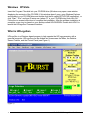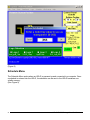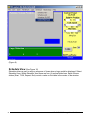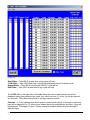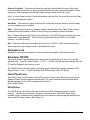
1
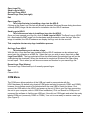
Open Logo File
Send Logo to HDLG
Get Logo From HDLG
Recent Logo Files (last eight)
Exit
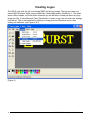
Open Logo File
· This is the first step in installing a logo into the HDLG.
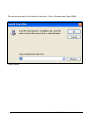
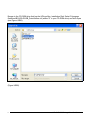
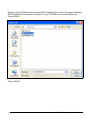
Clicking on the Open Logo File link will activate a standard Windows Browse dialog box where
a bitmap (BMP) image can be selected for installation into the HDLG hardware.
Send Logo to HDLG
· This is the second step in installing a logo into the HDLG.
Once you have opened your logo file, click on Send Logo to HDLG. The Send Logo to HDLG
link downloads the BMP image into the hardware and permanently saves the logo. After the
image is installed, the HDLG hardware can display that logo onto a video monitor.
This completes the two-step logo installation process.
Get Logo From HDLG
· This step allows you to retrieve a logo.
With this link, a logo that has been installed into the HDLG hardware can be retrieved and
saved onto the computer as a BMP file. Select the logo you wish to save, then click on Get
Logo From HDLG. The logo selected will then be downloaded (the selected logo will not be
visible during the download). When the download is complete a Windows File Open dialog
box will open. This is when you will choose a name and location for your saved logo file.
Recent Logo Files (History)
The recent Logo Files shows up to 8 recently opened logos.
Exit
Closes HDLG.
COM Menu
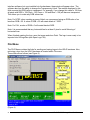
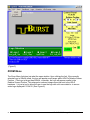
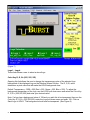
The COM menu allows selection of the USB port used to communicate with the
HDLG hardware. By default only physical COM ports are listed (commonly COM1 and COM2),
however, the software needs to be refreshed with the new USB to Serial port driver. First,
connect the USB cable to the HDLG and power up the unit (if this is your first time connecting
the unit to your computer, refer to USB Driver Installation). Click on Search for COM ports to
command the software to find the new USB port. Now click on COM again and select the newly
labeled COM port (commonly COM3 or COM4). Your unit is now ready to receive a new logo.
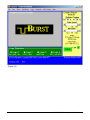
(See Figure 5).
21
HDLG HD/SD SDI Logo/Color Bar Generator