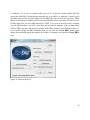
1
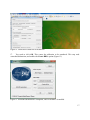
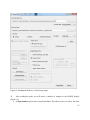
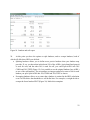
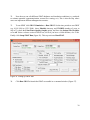
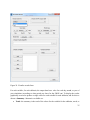
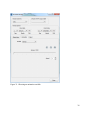
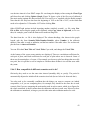
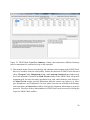
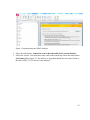
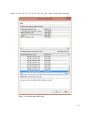
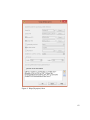
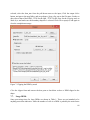
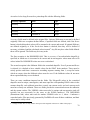
field is empty and so is the Variable. This first row is also the currently selected row, and this is
important. Whenever we change the scenario, output table, subbasin, HRU or variable settings
through their pull-down menus we will immediately change values in the currently selected row.
When you have more than one row you can select a row by clicking in it.
Whether the HRU setting is available or is set to '-' depends on the table we are using. If it is hru
(and we chose a multiple HRU option for the scenario) then we can choose an HRU from the
current subbasin. Otherwise HRU is not used and is set to '-'.
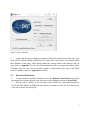
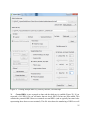
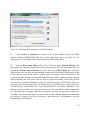
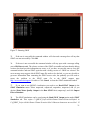
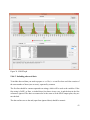
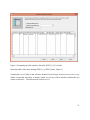
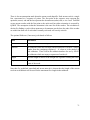
Suppose we want to compare the main outlet flows from two scenarios, and for both the main
outlet subbasin is number 9. Then rch is the appropriate table, and we select this and select 9 as
the Subbasin. Finally we select FLOW_OUTcms as the Variable. Now we want to add a second
row to the table for the other scenario. A convenient way to do this is the Copy plot button. This
copies the current row to a new row, and makes it current. Then all we have to do is choose a
new scenario and the second row will be (almost) what we want. The subbasin number is cleared
in the new row, to remind us that in a different scenario subbasin numbers might be different. We
select the appropriate number, in this case 9 again.
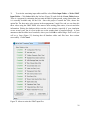
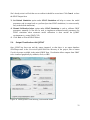
It is also possible to move the current row up or down: this just affects the ordering of the plots
in the output.
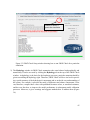
To add observed data we select an observed data file, and use the button Add observed.
observed is used as the scenario name, '-' is used for Table, Sub, and HRU, and we can select a
variable name from the file.
40