1
J74 Progressive (Standalone Edition) - User Manual
Page 3 of 47
How to install and start up J74 Progressive (Standalone Edition)
J74 Progressive Standalone Edition (SE) is an application for Mac and Windows. Installation of the tool is extremely
simple: just unzip the download pack, look for the application in the version for your specific system OS and launch
it from the respective folder.
Note: on Windows systems it is required to have Apple Quick Time installed (free download from apple.com)
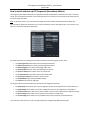
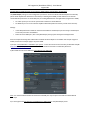
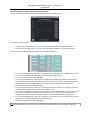
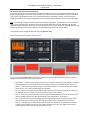
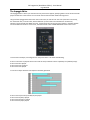
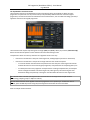
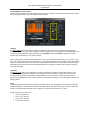
Once started the application will present to you its launch window, named “J74ProgressiveSE”. From there you can
open the various tools part of the application.
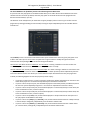
On the left side of the launch window you will find the buttons for starting up the various Tools:
•
•
•
•
•
•
•
•
•
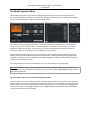
The [Clip Progression] button opens the Chord Progression Editor
The [Edit Progression] button opens its Chord Progression Matrix
The [Edit Arpeggio] button opens the Arpeggio Editor view
The [Chord Explorer] button opens the Chord Explorer window
The [Circle of Fifths] button opens the Circle of Fifths view
The [Custom Chords] button opens the Custom Chords Editor
The [Progression Chart] button opens a reference chart
The [Clip Modifier] opens the Clip Modifier window
The [Help] button opens the help page
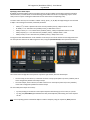
On the right side of the launch window you will find the the configuration Settings:
•
•
•
•
•
The [MIDI Input] menu allows you to select a MIDI port (or bus) for the application to receive MIDI from
The [MIDI Output] menu allows you to select a MIDI port (or bus) for the application to send MIDI to
The [Select Folder] button allows you to select a folder on your system as destination for MIDI file creation
The [Save Config] button allows you to save the current setup to a snapshot file
The [Load Config] button allows you to (re)load the setup from a previously saved snapshot file
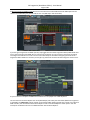
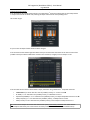
Let's now have a look on how to set up J74 ProgressiveSE with a Digital Audio Workstation (DAW).