1
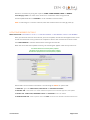
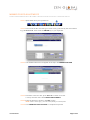
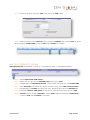
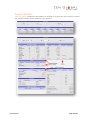
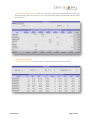
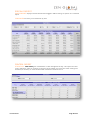
STEP 2 Select the product, then press ADD found next to the FIND button
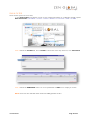
STEP 3 Within the bottom table, OPTION column, change to PRESENT, then select a DATE range and
lastly change the CONDITIONS column to AND. Select UPDATE to complete
MULTIPLE PRODUCT FILTERING
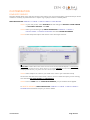
MENU NAVIGATION: CUSTOMERS ⇒ LOYALTY ⇒ UPLOADS/FILTERS ⇒ ITEM GROUP REPORT
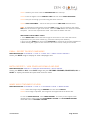
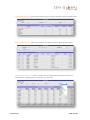
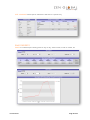
STEP 1 Select CREATE NEW ITEM GROUP
STEP 2 Name your item group in the DESCRIPTION field and press SAVE
STEP 3 Navigate back to ITEM GROUP REPORT, select created item group and click SHOW ITEMS
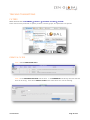
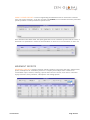
STEP 4 Click ADD ITEM. Search item and tick box to select item(s), press ADD SELECTED ITEMS
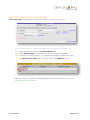
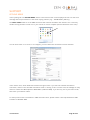
STEP 5 Navigate back to FILTERS and select your filter. Within the filter select the RECORDS tab
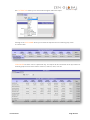
STEP 6 Within the LOYALTY ITEM GROUP drop down list, select your item group and click ADD
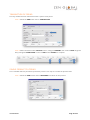
STEP 7 OPTION column, change to PRESENT, select a DATE range and change the CONDITIONS
column to AND. Select UPDATE to complete
USER MANUAL Page 13 of 31