1
4 Materials
This chapter covers material properties and the facilities available from within the Materials List.
4.1
Special Materials
Material 0 (transparent)
Assigning Material 0 to a surface corresponds to removing the effect of the surface completely from all
calculations. Hence surfaces with this material assigned:
•
•
Offer no hindrance to rays, either in energy or direction
Are excluded from the calculated active surface area of the room, and therefore do not affect
the estimate of the room's volume produced by Global Estimate or Quick Estimate Reverberation
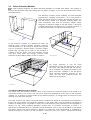
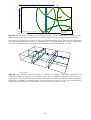
This facility can be used to temporarily "remove" surfaces such as doors or reflectors from the room or
to define a phantom surface over which an energy map (a grid) is to be plotted.
Material 1 (totally absorbent)
The totally absorbent material (Material 1) may be used for modeling outdoor situations, e.g. an open
roof. This is the only material, which will stop the rays during ray tracing and no reflections are
generated from surfaces assigned this material.
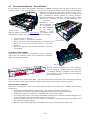
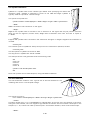
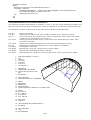
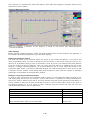
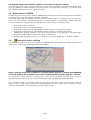
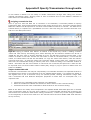
The material list consists of a window containing two lists, the surface list and the material library.
When selecting a surface in the surface list, the surface is automatically highlighted in the
corresponding 3D Materials window.
The Material list window consists of two parts:
• Surface List (left part of the window)
• Material List (right part of the window)
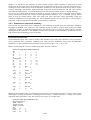
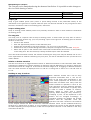
Some of the functions available, at the local toolbar as well as from the toolbar dropdown menu:
•
•
•
•
•
•
•
•
•
•
Assign Material, assigns the material selected in the material list to the surface(s) selected in
the surface list.
Assign Material for all surfaces, assigns the material selected in the material list to all the
surfaces in the room.
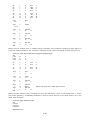
Global Replacement replaces all appearances of the material assigned to the selected surface in
the surface list, with the material selected in the material list. This is useful if you wish to
replace all appearances of a material with another, e.g. using two layers of plasterboard
instead on one.
Assigning Scattering coefficient is done a little different. You simply select the field at the
surface and enter the scattering coefficient using the keyboard.
Assigning Transparency coefficients, select field at the surface and enter the transparency
coefficient directly using the keyboard.
Assigning wall Type allowing calculation of Transmission through walls or fine tuning
scattering /diffraction algorithms.
Repeat Scattering coefficient assigns the scattering coefficient last entered in the surface list
to the current selected surface.
Repeat Scattering coefficient for all surfaces, assigns the scattering coefficient assigned to the
surface selected in the surface list to all the surfaces.
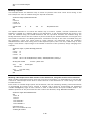
Quick Estimate for fast evaluation of reverberation times and listing of summarized absorption
areas, while assigning materials etc.
Edit /Add a material allow to create new materials or to edit existing ones. The material editor
available assists in mixing different materials into one.
4-60