1
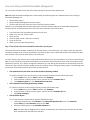
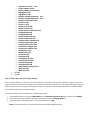
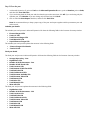
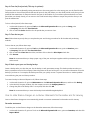
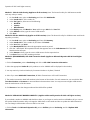
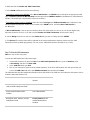
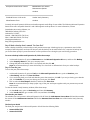
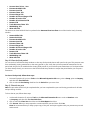
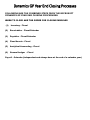
1. In Microsoft Dynamics GP, point to Tools on the Microsoft Dynamic GP menu, point to Routines, point to Payroll, and then click Year-End Closing. 2. In the Year field, type 2014, and then click Process. Note When you process the 2014 Year End Wage file, make sure you have a '2014' tax update in place, so the correct FICA limit used. You can install the payroll tax update for 2015 any time after the year-end wage file for 2014 has been created, and before you process a new pay run for 2015. Make a backup of the new file Create a backup, and then put this backup into safe, permanent storage. By creating a backup, you make sure that you have a permanent record of the company's financial position at the end of the year. You can restore the backup to quickly recover data if a power fluctuation or other problem occurs during the year-end closing procedure. To create a backup in Microsoft Dynamics GP, follow these steps: 1. 2. 3. In Microsoft Dynamics GP, point to Maintenance on the Microsoft Dynamics GP menu, and then click Backup. In the Company Name list, click your company name. Change the path of the backup file if it is required, and then click OK. Note We recommend that you name this backup 2014 Post Year-End File to differentiate it from your other backups. Verify W-2 and 1099-R statement information To view the W-2 information in Microsoft Dynamics GP, point to Tools on the Microsoft Dynamics GP menu, point to Routines, point to Payroll, and then click Edit W-2s. To view the 1099-R information in Microsoft Dynamics GP, point to Tools on the Microsoft Dynamics GP menu, point to Routines, point to Payroll, and then click Edit 1099-Rs. Note If you change the W-2 or the 1099-R information, we recommend that you make another backup. Print the W-2 statements and the W-3 Transmittal form To print the W-2 statements, follow these steps: 1. In Microsoft Dynamics GP, point to Tools on the Microsoft Dynamics GP menu, point to Routines, point to Payroll, and then click Print W-2s. 2. In the Print W-2 Forms window, specify the following settings: Print W-2s for: Normal Year-End Print: W-2 Forms 3. Click Print. Note You can print employee W-2 statements as many times as you have to. To print the W-3 Transmittal Form, follow these steps: 1. In Microsoft Dynamics GP, point to Tools on the Microsoft Dynamics GP menu, point to Routines, point to Payroll, and then click Print W-3s. 2. In the Print W-2 Forms window, specify the following settings: Print W-2s for: Normal Year-End Print: W-3 Transmittal Form 3. Click Print. Note You can print the W-3 Transmittal Form as many times as you have to. Print the 1099-R forms and the 1096 Transmittal form To print the 1099 forms, follow these steps: 1. In Microsoft Dynamics GP, point to Tools on the Microsoft Dynamics GP menu, point to Routines, point to Payroll and then click Print 1099-Rs.