1
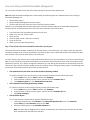
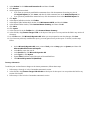
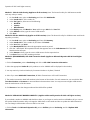
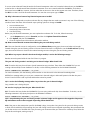
2. Mark the bullet for Vendor and 1099 Transactions.
3. In the FROM and TO sections enter the following:
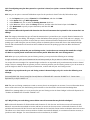
• To change a vendor to be 1099able: select Not a 1099 Vendor in the FROM section, and select the appropriate 1099
type of Dividend, Interest or Miscellaneous, and the appropriate 1099 Box number in the TO section. (Miscellaneous
and Box 7 Nonemployee Compensation is the most common.)
• To change a vendor to not be 1099able: Select the current Tax Type and 1099 Box Number that is selected on the
Vendor Maintenance Options window for the vendor in the FROM section, and select Not a 1099 Vendor in
the TO section.
*If Not a 1099 Vendor is not an option in the drop-down lists, then either you are not on a GP version higher than
Microsoft Dynamics GP 2013, or you did not select Vendor and 1099 Transactions as instructed in step 2.
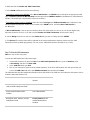
4. Use the Range restriction to restrict to the Vendor ID that you wish to change and click INSERT.
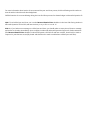
5. Click Process. The vendor status will be updated on the Vendor Maintenance Options window, and the 1099
information will be updated appropriately. You can use the 1099 details window (see Method 1) to verify.
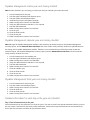
Step 7: Print the 1099 statements
Note You can do this at any time.
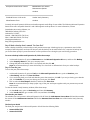
To print the 1099 statements, follow these steps:
1.
In Microsoft Dynamics GP, point to Tools on the Microsoft Dynamics GP menu, point to Routines, point
to Purchasing, and then click Print 1099.
2. In the 1099 Year field, type 2014.
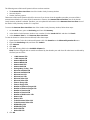
3. Each of your 1099 report types must be printed separately. In the Print 1099 window, click the options that you
want in the1099 Type field and in the 1099 Box Number field, and then click Print.
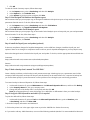
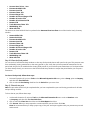
The following table provides additional information about the fields on the 1099 form and where this information can be
located in Microsoft Dynamics GP.
Field
window where data is
located
Payers name, street address, city,
state, and ZIP Code/Postal Code
Print 1099 window
Payers Federal Identification
number
Print 1099 window
Recipients name, address, and Zip
Code/Postal Code
Primary Address of the
Vendor Maintenance
window