1
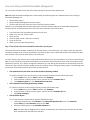
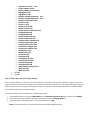
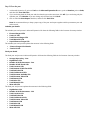
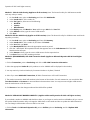
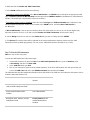
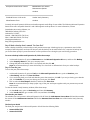
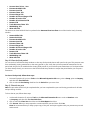
d. Use the Stock Count Entry window to enter information about the results of your stock counts. When you process a stock count, variance transactions are created. If the Autopost Stock Count Variances check box is selected, the transactions will also be posted. To open the Stock Count Entry window, point to Inventory on the Transactions menu, and then click Stock Count Entry. Instead of following step 3, you can manually create your adjusting entries. To do this, print a Physical Inventory Checklist by using the Inventory Activity Reports window, and then perform a physical count of your Inventory Items to verify that quantity on hand amounts are accurate for all Items. To open the Inventory Activity Reports window, point to Inventory on the Reports menu, and then click Activity. If there are any differences, enter the necessary adjustments in the Item Transaction Entry window, and then post the transactions. To open the Item Transaction Entry window, point to Inventory on the Transactions menu, and then click Transaction Entry. 4. Print additional reports. Print any additional reports that you will need for planning or for your permanent records. The suggested reports are as follows: Stock Status Report Purchase Receipts Report Turnover Report Transaction History Report Serial Number List Lot Number List To access the Reports palette, point to Inventory on the Reports menu. Use selections from the Inventory Reports palette to print these reports. If you plan to remove sold purchase receipts during the year-end closing process, we recommend that you print the Purchase Receipts Report to review the receipts that will be removed. 5. Make a backup. 6. Make a backup of all company data. This is true so that you will be able to recover quickly should a power fluctuation or other problem occur during the year-end closing procedure. Close the year. Closing a year performs the following tasks: Transfers all summarized current-year quantity (cost and sales amounts) to transaction history for the Items for which you have been keeping summarized sales history. Updates the amount in the item's Beginning Quantity field to the Quantity on Hand field at each site. Certain reports, such as the Turnover Report, use the amount in the Beginning Quantity field for report calculations. Zeros the Quantity Sold field in Item Quantities Maintenance window for each site. Removes purchase receipts and cost change history for items that have been completely sold. Removes any discontinued items from the Item records that have been completely sold. Removes any lot attributes from the records of lot numbered items if they have been completely sold. Updates the standard cost of each item to the current cost if you use either the FIFO periodic method or the LIFO periodic valuation method. Uses the Inventory Year-End Closing window to close the year. The following options are available: Remove discontinued items If you click to select the Discontinued Items check box, all discontinued Items that have a zero balance will be removed during the year-end closing process. Items can be designated as discontinued by using the Item Maintenance window. Discontinued Items that have a quantity on hand of zero (except for kit components) and have no unposted transactions will be completely removed from the Inventory module. If you use the Service Call Management module, determine whether any discontinued items exist on any unposted service documents. If discontinued items exist on any unposted service documents, the documents must be posted before you continue. The Sales Order Processing report, the Invoicing report, or the Purchase Order