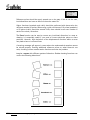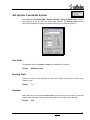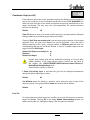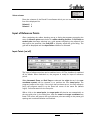
1
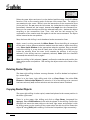
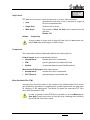
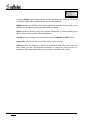
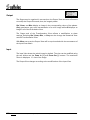
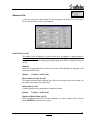
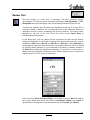
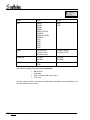
Select Base Point <X,Y>:
Specify the base point or [Enter] for the default
value (center of the raster object)
Angle/Scaling/<Second Point>: Type a for rotating or s for scaling if applicable
or specify new insertion point
Angle:
Angle<0.0>:
Scaling:
Scaling<1.0>:
Enter value, specifying the rotation angle, or press [Enter] for 0°
Enter value, specifying the scaling, or press [Enter] for scale
factor 1.0
Second Point:
<Second Point >: Enter point, specifying the new insertion point, or [Enter] for the
actual position
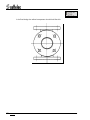
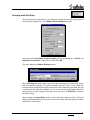
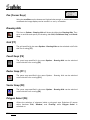
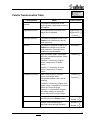
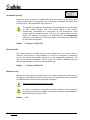
At the Command prompt, enter vprcopy
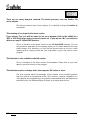
Copying raster areas between images with different colors will cause
unexpected results.
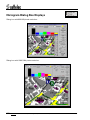
Move Raster
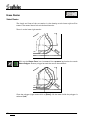
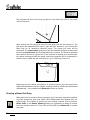
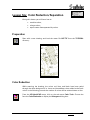
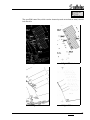
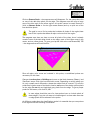
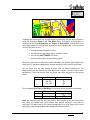
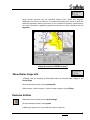
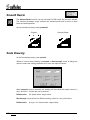
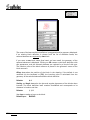
After the Raster Selection process the raster object is positioned on top of the
original raster. It can be moved, rotated, or scaled. When confirming its final
position it will be copied into the current raster image at the new position and the
first selected object is deleted.
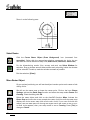
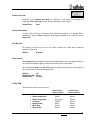
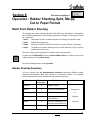
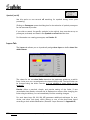
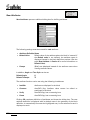
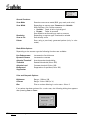
Select Base Point <X,Y>:
Specify the base point or [Enter] for the default
value (center of the raster object)
Angle/Scaling/<Second Point>: Type a for rotating or s for scaling if applicable
or specify new insertion point
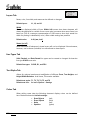
Angle:
Angle<0.0>:
Scaling:
Scaling<1.0>:
Enter value, specifying the rotation angle, or press [Enter] for 0°
Enter value, specifying the scaling, or press [Enter] for scale
factor 1.0
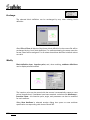
Second Point:
<Second Point >: Enter point, specifying the new insertion point, or [Enter] for the
actual position
V 6-7 / E
Section 5
Hybrid Editor for Raster/Vector Data
123