1
Combine to Block
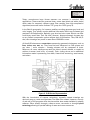
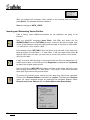
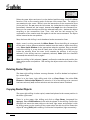
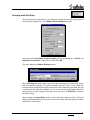
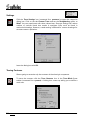
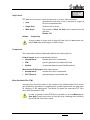
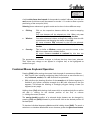
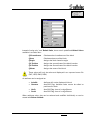
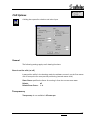
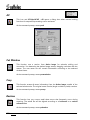
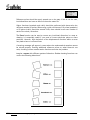
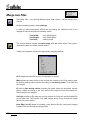
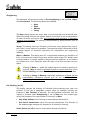
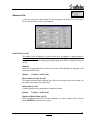
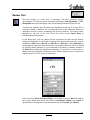
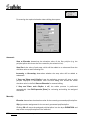
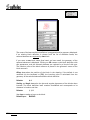
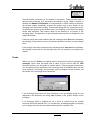
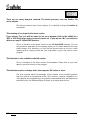
The selected elements are combined to form a block. A dialog box appears, in
which you can enter a block name of your choice:
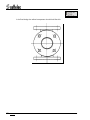
The last-used block name is suggested and its geometry displayed. When you
accept it (OK), the selected elements are replaced by this block. If you enter a new
block name, the geometry of the selected elements is displayed. Click OK to form
the block.
If you choose HATCH as a block name, this does not create a new block, but the
selected elements are combined to a hatch.
See Section 11 for detailed information about blocks and attributes.
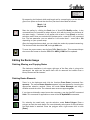
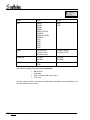
Assign Elevation
Automatic:
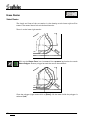
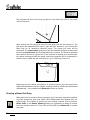
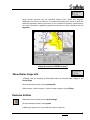
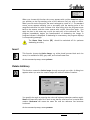
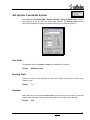
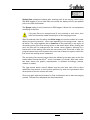
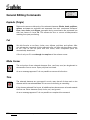
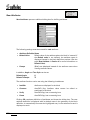
After clicking this icon select the group of polylines/splines to be
assigned by drawing a line crossing the polylines/splines. The
selected elements are displayed white or black (depending on the
background color).
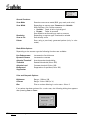
Manually:
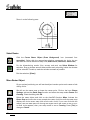
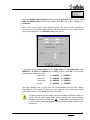
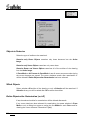
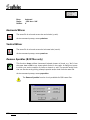
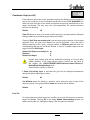
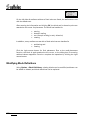
After first selecting polylines/splines using the standard selection
techniques (pick, window, cross) and then clicking this icon the
elevation value for each polyline/spline can be entered. The
element in process is displayed white or black (depending on the
background color).
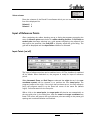
Each polyline/spline being modified will automatically be moved into the layer
ELEVATION, which has the default color green.
V 6-7 / E
Section 11
Hybrid Editor in the VP HybridCAD Window
221