1
Using VShield
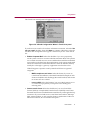
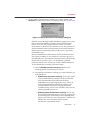
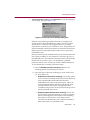
To change these default options, verify that the Enable Java & ActiveX filter
checkbox is selected, then follow these steps:
1. Tell VShield which objects to filter. Your options are:
•
ActiveX Controls. Select this checkbox to have VShield look for and
block harmful ActiveX or .OCX controls.
•
Java classes. Select this checkbox to have VShield look for and
block harmful Java classes, or applets written in Java.
VShield will compare the objects you encounter as you visit Internet sites
with an internal database that lists the characteristics of objects known to
cause harm. When it finds a match, VShield can alert you and let you
decide what to do, or it can automatically keep the object from
downloading. See “Choosing Action options” on page 110 more details.
2. Tell VShield which sites to filter. The program uses a list of dangerous
Internet sites to decide which ones to prevent your browser from visiting.
You can enable this function and add to the list of “banned” sites in two
ways:
•
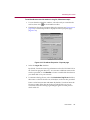
IP Addresses to block. Select this checkbox to tell VShield to
identify dangerous Internet sites by using their Internet Protocol
(IP) addresses. To see or designate which addresses you want
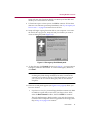
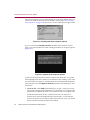
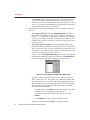
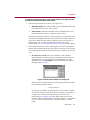
VShield to ban, click Configure to open the Banned IP Addresses
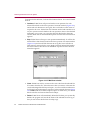
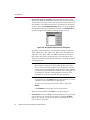
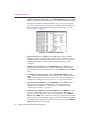
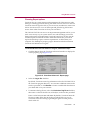
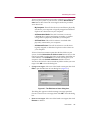
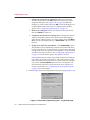
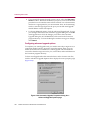
dialog box (Figure 4-28).
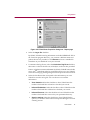
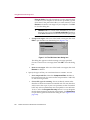
Figure 4-28. Banned IP addresses dialog box
Internet Protocol addresses consist of four groups of three numbers
each, formatted in this manner:
123.123.123.123
Each group of numbers can range between zero and 255. VShield
can use this number to identify a specific computer or network of
computers on the Internet and prevent your browser from
connecting to it. In Figure 4-28, each address has two sets of IP
numbers. The first is the banned site’s domain address—the number
you use to find it on the Internet—and the second is a “subnet
mask.”
User’s Guide
107