1
Scheduling Scan Tasks
•
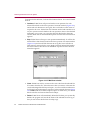
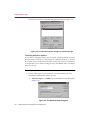
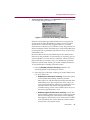
Remove an item from the list. To delete an exclusion item, select it
in the list, then click Remove. VirusScan will then scan this file or
folder during its next scanning operation.
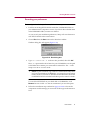
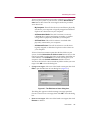
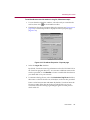
4. Click the Security tab to choose additional VirusScan options. To save
your changes without closing the VirusScan Properties dialog box, click
Apply. To save your changes and return to the Scheduler window, click
OK. To return to the Scheduler window without saving your changes,
click Cancel.
NOTE: Clicking Cancel will not undo any changes you already
saved by clicking Apply.
Choosing security options
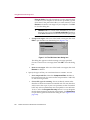
VirusScan lets you set a password to protect the settings you choose in each
property page from unauthorized changes. This feature is particularly useful
for system administrators who need to keep users from tampering with their
security measures by changing VirusScan settings. Use the Security property
page to lock your settings.
Follow these steps:
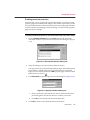
1. To start from the Scheduler window, select the task you created in the
task list, then click
in the Scheduler toolbar.
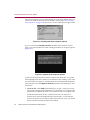
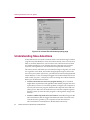
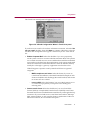
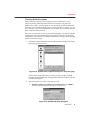
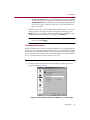
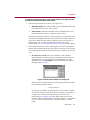
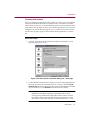
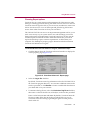
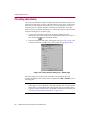
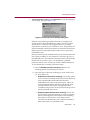
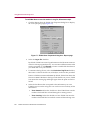
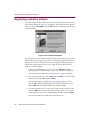
2. The McAfee VirusScan Properties dialog box appears (see Figure 6-5 on
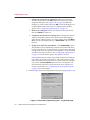
page 158). Click the Security tab to display the correct property page.
(Figure 6-15).
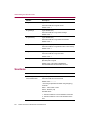
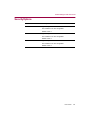
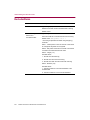
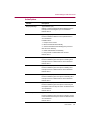
Figure 6-15. VirusScan Properties dialog box - Security page
User’s Guide
171