1
Using VShield
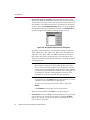
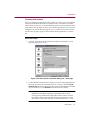
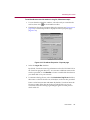
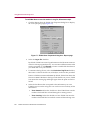
2. Decide whether to protect the property pages for all VShield modules, or
whether to protect individual pages. Your choices are:
•
Password-protect all options on all property pages. Select this
button to lock everything all at once.
•
Password-protect selected property pages only. Select this
button to choose which property pages in individual modules you
want to lock. The other tabs in the Security Properties dialog box let
you designate individual pages.
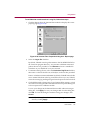
3. Enter a password to use to lock your settings. Type any combination of
up to 20 characters in the upper text box in the Password area, then enter
the exact same combination in the text box below to confirm your choice.
IMPORTANT: VShield’s password protection is different from the
password protection you can assign to VirusScan. Choosing a
password for one component does not assign that password to the
other component—you must choose passwords for each
independently.
4. Click any of the other Security module tabs to protect individual
property pages. To save your password without closing the Security
Properties dialog box, click Apply. If you chose to protect all property
pages in all modules and want to close the dialog box, click OK. To close
the dialog box without saving any changes, click Cancel.
NOTE: Clicking Cancel will not undo any changes you already
saved by clicking Apply.
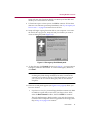
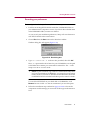
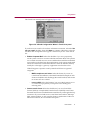
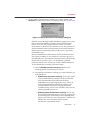
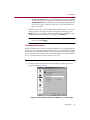
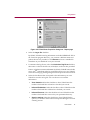
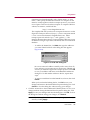
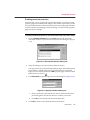
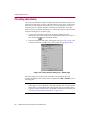
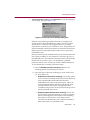
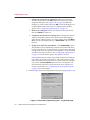
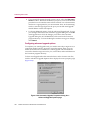
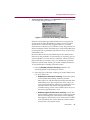
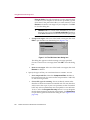
Once you have protected your settings with a password, VShield will ask you
to enter that password whenever you open the VShield Properties dialog box
(Figure 4-36).
Figure 4-36. Verify Password dialog box
Enter the password you chose in the text box provided, then click OK to get
access to the VShield Properties dialog box.
User’s Guide
115