1
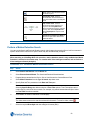
Note:
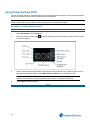
Selecting Specific Range also allows selection of Time Filter options. Time Filter options can be
used to specify a sub-set of time to search. For example, only search between 9am and 5pm. Select
the Time Filter checkbox to enable.
6
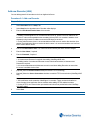
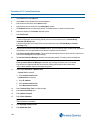
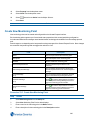
Select Next. The Search Parameters screen displays.
7
Select required Alarm Rule from the Load from Alert Rules list.
8
Search parameters are populated with Alarm Rule parameters. If required, edit search parameters.
9
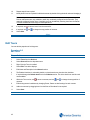
Select Next. The Confirmation screen displays. Confirm your search criteria are correct. Select Previous
to return to the previous screen to make changes. Select Finish to execute the search.
10
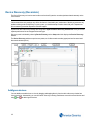
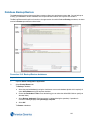
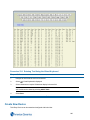
Search and Retrieval Wizard closes and the Advanced Search Results tab opens displaying search
results. Double click on a search result to view associated video.
- End -
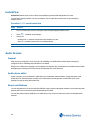
Investigator Mode
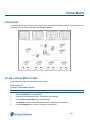
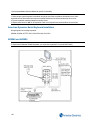
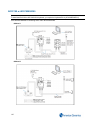
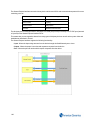
Launching Investigator Mode opens a new Guard window with the selected, main video stream in paused mode
occupying the upper left pane.
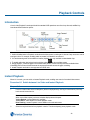
This mode allows you to drag in up to 5 other streams, each will automatically pause at the same time as the selected
stream, enabling a time synchronized view of all cameras.
Note:
Investigator mode can be launched from any surveillance view and is also available from the Search Results window.
Procedure 10-9 Launch Investigator Mode
Step Action
1
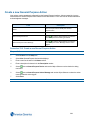
Select the main video stream from which to launch Investigator mode. Yellow border displays around pane
indicating instant playback is available.
2
Select
3
Drag in other cameras as required. These video streams are paused at the same point as the main video
stream.
4
Select Playback controls as required to navigate the video streams simultaneously.
. Investigator mode launches in a new window.
- End -
62