1
Chapter 6: Try It Yourself Exercises
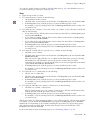
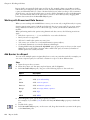
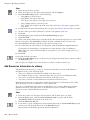
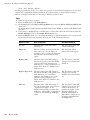
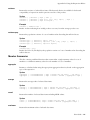
Tip: For information about the periodsToDate function, click the function in the functions
tab. It is located in the M-Q folder in the Common Functions folder.
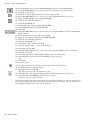
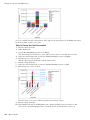
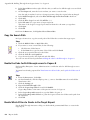
5. Click the Year to Date Set column and click the cut button.
6. Create this query calculation named YTD Revenue next to the Selected Month column:
total(currentMeasure within set[Year to Date Set])
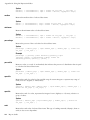
7. Create this query calculation named Percent of YTD Revenue next to the YTD Revenue
column:
[Selected Month]/[YTD Revenue]
Steps to Format the Report
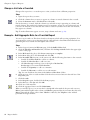
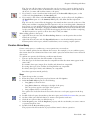
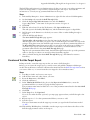
1. Click the lock/unlock button to unlock the report.
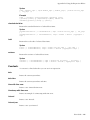
2. Add this text item to the left of the text in the YTD Revenue column, and add a blank space
after the text:
YTD Revenue for
3. Set the font style of the text to italic.
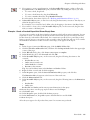
4. In the YTD Revenue column, click <#YTD Revenue#> and change the Source Type property
to Report Expression.
5. Double-click the Report Expression property and drag the Month parameter to the
Expression Definition box.
Tip: You can find the Month parameter in the parameters tab.
6. Click the lock/unlock button to lock the report.
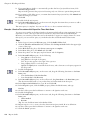
7. Right-click the Percent of YTD Revenue column title and click Fact Cells for "Percent of YTD
Revenue".
8. In the Properties pane, double-click the Data Format property.
9. Under Format type, click Percent.
10. Set the No. of Decimals property to 2.
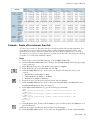
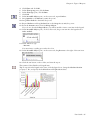
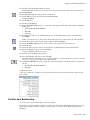
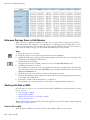
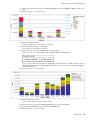
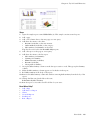
11. Run the report to view what it will look like for your users.
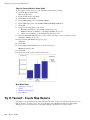
Users are prompted to select a month. When they click OK, the report shows year-to-date
revenue for each product line and the percentage of revenue generated for the selected month.
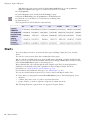
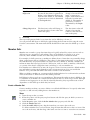
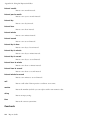
Need More Help?
•
•
•
•
•
•
•
Choose a Report Template
Add Data to a Report
Working with Dimensional Data
Using the Expression Editor
Format Crosstabs
Specify the Font
Format Data
Try It Yourself - Create a Report with Drill-through Access to
Itself
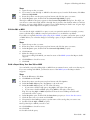
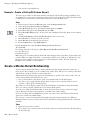
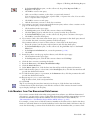
Create a report that drills to itself so that users can view detailed information in the same report.
In this topic, you learn how to create a report that shows revenue by each retailer. Users can access
detailed order information for a particular retailer.
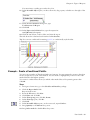
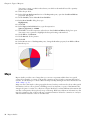
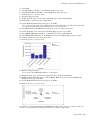
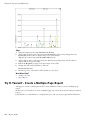
It should take 20-25 minutes to complete this topic, and your report will look like this.
196
Report Studio