1
Appendix H: Drilling Through from Cognos Series 7 to Cognos 8
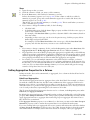
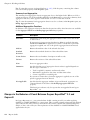
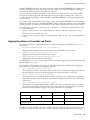
Setting up drill-through access from a third-party cube to Cognos 8 involves
❑ configuring Cognos Series 7 for drill-through access to Cognos 8
❑
❑
❑
❑
❑
❑
preparing the cube
copying the search path of the folder that contains the target report
enabling the cube for drill-through access to Cognos 8
deciding which filters to create in the target report
creating the target report
disabling the Drill Through Assistant
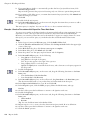
Configure Cognos Series 7 for Cognos 8
Before you can set up drill-through access from PowerPlay Web to Cognos 8, you must configure
Cognos Series 7 for Cognos 8.
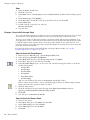
Steps
1. If Configuration Manager is started, close it.
2. Open the cer3.ini file in a text editor.
The file is located in the \bin directory where Cognos Series 7 is installed.
3. Scroll down to the [NGC] section and change the value for Drill_enable to 1.
4. Save the file.
5. Start Configuration Manager.
6. On the Start tab, click Open the current configuration.
7. In the Explorer pane, right-click the highest-level object and click Apply Selection.
8. Exit Configuration Manager.
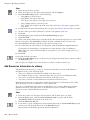
Prepare the Cube
Prepare the cube for drill-through access.
You must already have set up the cube using PowerPlay Connect. For more information, see the
PowerPlay Connect online help.
Steps
1. Create a file and name it by typing name of target report.crr.
You can create the file using any application, such as Notepad.
The name of the Cognos 8 target report must be identical to the name you type here.
2. Start PowerPlay Connect.
3. From the Tools menu, click Drill-Through.
4. Click Add and add the file you previously created.
5. Click OK.
6. Save the cube.
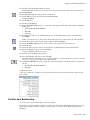
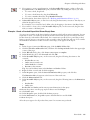
Copy the Folder Search Path
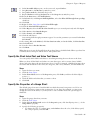
In Cognos Connection, copy the search path of the folder that contains the target report.
Steps
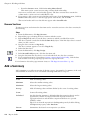
1. Click the Public Folders or My Folders link.
2. If you want to create a new folder:
• Click the new folder button.
• In the Name box, type the name of the folder and click Finish.
3. Click the set properties button for the folder.
User Guide 435