1
RoutePacks and Route Planning
•
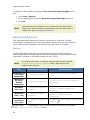
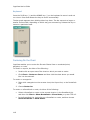
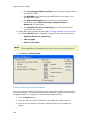
Re-Plan Wizard (see Replanning a Route).
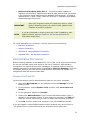
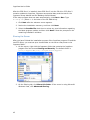
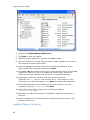
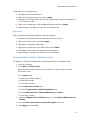
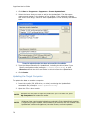
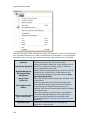
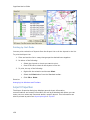
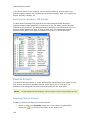
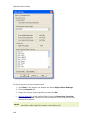
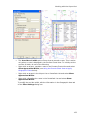
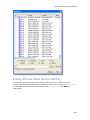
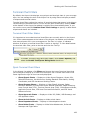
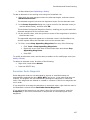
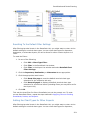
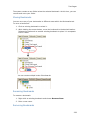
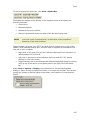
To add an alternate to an existing route using the RoutePack List:
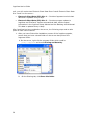
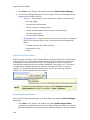
1. Right-click the route waypoint where the alternate begins, and then choose
Add Alternate Route.
The selected waypoint becomes the departure airport for the alternate route.
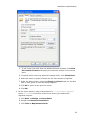
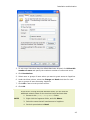
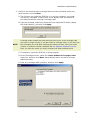
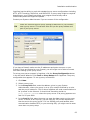
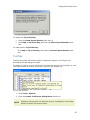
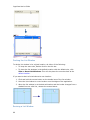
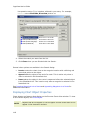
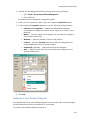
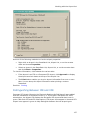
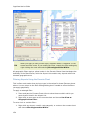
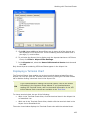
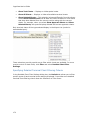
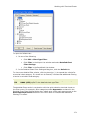
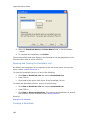
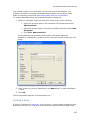
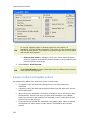
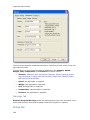
2. In the Route Properties dialog box, type a name for the alternate route (or
use the default name), and then click OK.
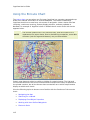
This activates the Append Waypoints function, enabling you to point-and-click
alternate waypoints on the enroute chart.
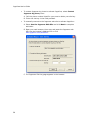
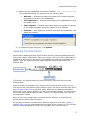
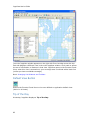
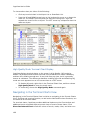
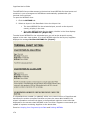
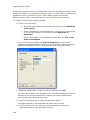
3. On the enroute chart, click the symbols or areas of the waypoints to include in
the alternate route.
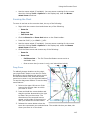
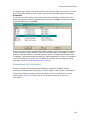
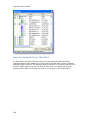
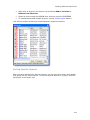
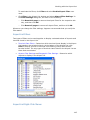
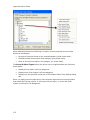
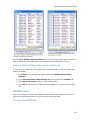
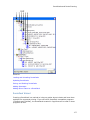
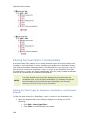
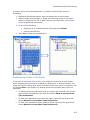
The appended waypoints appear as an alternate route in the RoutePack List,
and the system draws the alternate route on the enroute chart.
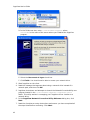
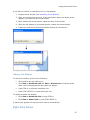
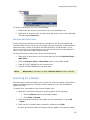
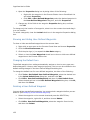
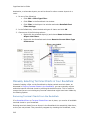
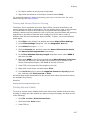
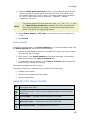
4. To finish, choose Stop Appending Waypoints from any of the following:
•
Click Tools > Stop Appending Waypoints.
•
Right-click on an open area of the enroute chart and choose Stop
Appending Waypoints.
•
Press ESC.
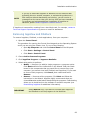
To modify an alternate route, use the same procedure as for modifying a route (see
Modify a Route).
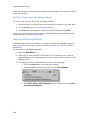
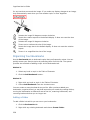
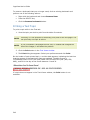
To delete an alternate route, do either of the following:
•
Right-click it and choose Delete.
•
Press the DELETE key.
Renumber Route Waypoints
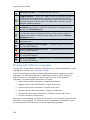
Route Waypoints that are not associated to airports or navaid elements are
automatically assigned the name WP1, WP2, and so on, in the order that they are
created. The program will not automatically arrange the waypoints in numerical
order if the waypoints are deleted or created in a manner in which the waypoints are
not in order.
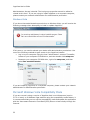
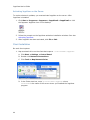
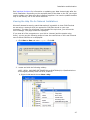
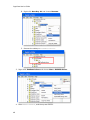
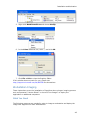
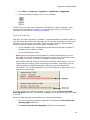
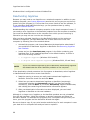
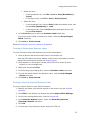
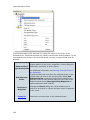
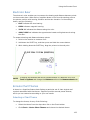
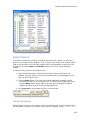
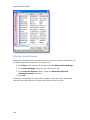
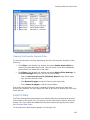
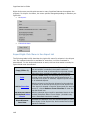
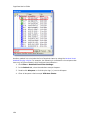
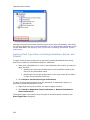
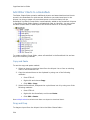
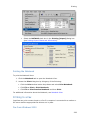
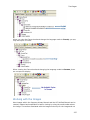
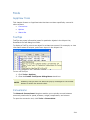
If you would like to arrange the waypoints in numerical order, right-click the route in
the RoutePack List and choose Renumber Route Waypoints.
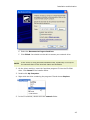
If you assigned the waypoint a new name (right-click on the waypoint, and click
Properties), it will not be overwritten in the process of renumbering the route
waypoints.
197