1
Page 4
Section 1 - Chapter 2
SYMBOL
MEANING
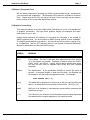
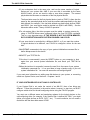
In our examples, the keycap symbol appears whenever you need to
press a certain key on your terminal keyboard. The name of the key you
need to press appears inside the keycap symbol, like this: RETURN . If you
need to press the TAB key, you would see TAB , or the ESCAPE key,
ESCAPE . (Sometimes the ESCAPE key is labeled ESC or ALT MODE.)
KEY
{}
Braces are used in some examples to indicate optional elements of a command line. In the example:
DIR{/switch}
the braces tell you "/switch" is not a required portion of the command line.
/
The slash symbol precedes a command line switch or "option request."
For example:
DIR/WIDE:3 RETURN
This command requests a directory display of the disk account you are
currently logged into. The switch (/WIDE:3) indicates you want the
display to be three columns wide.
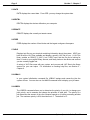
CTRL
^
/
KEY
This indicates a control sequence you press on the keyboard. The
key is pressed and held down while the indicated key is also pressed.
CTRL
This symbol in front of a capital letter means the letter is a "control
character." For example, when you press CTRL / C , it appears on your
screen as ^C. (^C is the control character used like the CANCEL key to
cancel most programs and return you to AMOS command level.)
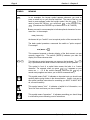
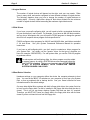
This symbol means "halt!" It indicates an important note you should read
carefully before going further in the documentation. Usually, text next to
this symbol contains instructions for something you MUST or MUST NOT
do, so read it carefully.
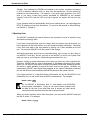
This symbol means "hint." It indicates a helpful bit of information, or a
"short cut" that could save you time or trouble.
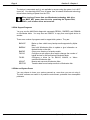
This symbol means "remember." It indicates something you should keep
in mind while you are following a set of instructions.
System Operator’s Guide, Rev. 00