1
6.3 Cameras configuration
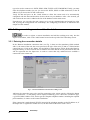
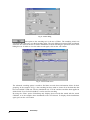
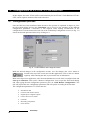
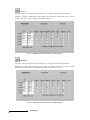
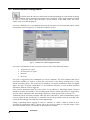
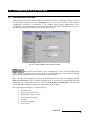
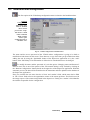
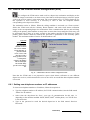
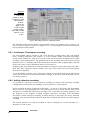
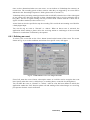
Select the “Cameras” folder of the main menu to configure the number, the name and
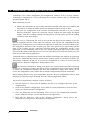
the description of the cameras connected to the unit to be configured. The screen shown in Fig. 50
will be displayed.
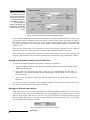
Practical
Configuration:
The CCTV installation
has two cameras.
The camera #1
corresponds to the
main entrance and the
camera #2 (dome) to
the main service area
where the cash vaults
are placed.
A video tour with ten
seconds of dwell time
on each camera is
defined.
Fig. 50 – VT200 Cameras configuration folder
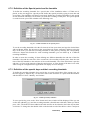
6.3.1 Defining and naming the installed cameras
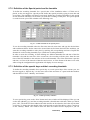
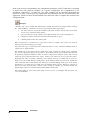
To define the installed cameras, in the “Equipped?” column click on the checkbox corresponding to
each of the cameras connected to the VT200 unit of your installation. For models with 16 cameras,
you have to select the group of cameras to configure (1-8 or 9-16) through the selection box located
on the top right part of the window.
Click on the textbox of the “Name” column, that displays by default “Camera n” to exchange it
with a more meaningful name. Click on the textbox of the “Description” column and type a
descriptive text. The name and description given to the cameras will be the ones that appear on the
Supervisor application’s graphic interface and will be used as a reference by the operator.
Tick the “Check video signal present?” for those cameras whose video signal you want to monitor.
If a video signal loss is detected, ‘Signal loss’ will be activated (see chapter 6.9).
Click on the “B/W” checkbox if the camera installed is not a color camera (clicking this checkbox
for black and white cameras makes the video storage and transmission processes more efficient).
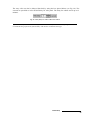
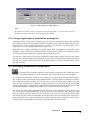
6.3.2 Defining the video format and the quality level
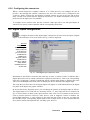
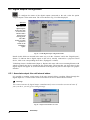
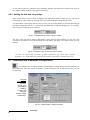
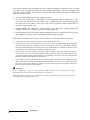
At the botton of the screen the analog video format (PAL or NTSC) of the connected cameras must
be specified. This format must be the same for all cameras. An incorrect selection of this parameter
will lead to an imperfect viewing and recording of the video.
Below this you can also select the “High Quality” option. This affects all cameras, to increase the
quality of the images captured (increasing consequently the size of the images to the double of the
size with normal quality images).
VideoSetup
51