1
Project No. 004074
NATURNET-REDIME
D.4.2.1
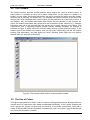
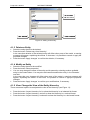
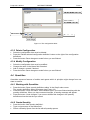
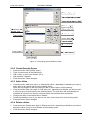
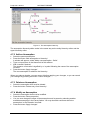
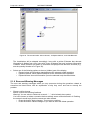
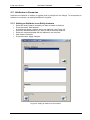
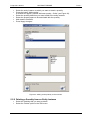
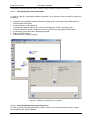
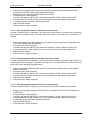
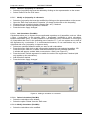
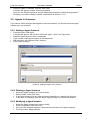
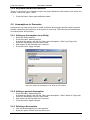
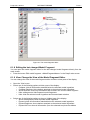
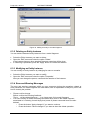
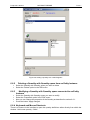
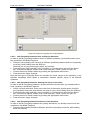
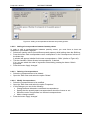
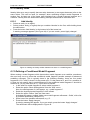
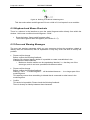
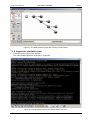
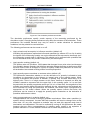
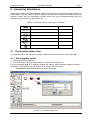
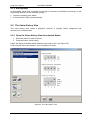
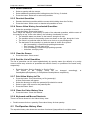
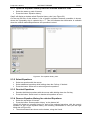
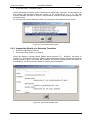
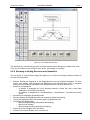
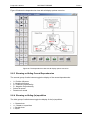
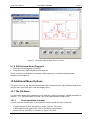
Figure 40. Adding a correspondence between two quantity spaces.
6.8.3.2 Adding a Correspondence between Quantity values
In order to add a correspondence between quantity values, you must have at least two
quantities in your Model Fragment.
• Select two quantity values (from different quantity spaces) while holding down the Shift-key.
• Press the button 'Add correspondence as a consequence' in the 'Consequences' column of
the button bar.
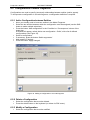
A window will appear, labelled ‘Add a new correspondence – Build’ (similar to Figure 40).
• Tick the checkbox ‘Select directed correspondence’, if desired.
If so, you can switch the order of arguments if desired by pressing the button ‘Switch
arguments’.
• Press the button ‘Apply changes'.
6.8.3.3
•
•
Select the correspondence to be deleted.
Open the 'Edit' menu and select the option ‘Delete'.
6.8.3.4
•
•
•
•
Deleting a Correspondence
Modify Correspondence
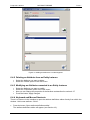
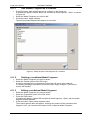
Select the correspondence to be modified.
Open the 'Edit' menu and select the option 'Properties'.
In this Dialogue you can do the following:
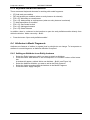
• Change between directed or undirected correspondence.
• Specify that the quantity space correspondence should be inverse or not.
• Switch the order of arguments in a directed correspondence.
• Add or change remarks
Press the button ‘Apply changes'.
75
/ 107