1
9. Troubleshooting
3.5.1
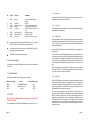
Use the following table to identify and fix any problems you find.
Symptom
Possible Cause
Try....
No Display
(Battery only supply)
Battery flat
Replace battery
No display
(Rechargeable battery
kit fitted)
No charging supply
Check connections to car 12 volt
supply
Battery lasts for very
short time
Back Light on
constantly
Use Set Up Mode to change settings - see section 3.2.8
Beacon not detected
Preparing Your PC
Before transferring the data from the lap timer to the PC, the PC must be waiting
to accept the data. The data is in text format and can be collected with the
standard Windows® 95 or 98 HyperTerminal® program. (The Terminal program
provided with Windows 3 is very similar.) To set up the PC, follow these steps:
1
Start HyperTerminal - this is found under Programs-Accessories(Communications in Windows 98)
2
Choose the File drop down menu and select New Connection and type in
a suitable name for the connection - laptimer for example.
3
Click the Connect Using .... drop down box and select Direct to Com1 or
Direct to Com2 etc. depending on the interface you are proposing to use
on the PC.
4
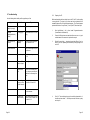
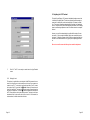
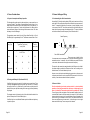
Click OK. The next dialogue box sets the serial line characteristics. It
should be as shown below - 9600 bits per second, 8 bit data, no parity
and 1 stop bit:
First try at close range away from
other beacons
Beacon battery flat Check battery voltage - see section 5.3
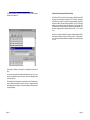
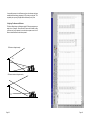
Beacon or IR Detector not aligned
Check alignment - see section 5
Beacon interference
Check for other interfering beacons - make sure your beacon is
further than 5 metres away from
others
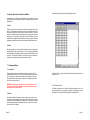
Beacon and Lap
Use Set Up Mode to set channels
Timer set to differ- - see section 3.2.4 and 3.2.5
ent Main Channels
IN Beacon not detected
First check at close range away
from other beacons
IN Beacon positioned incorrectly
Page 26
Make sure IN beacon is not seen
while Lap Timer is in Blank Time see section 3.3.5
Page 15