1
Press the Keyboard button on your interactive
product to open the on-screen keyboard. This
way, you don’t have to leave the interactive
product to enter text.
For more help on performing specific tasks, open the Help
Center by pressing the Help button on the Start Center. Or visit
the Support and Training areas of www.smarttech.com for
more ways to learn about SMART Board software.
Keyboard
Button
Help
Button
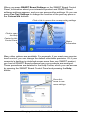
Press the appropriate button on the bottom of the
Sympodium interactive pen display to quickly open
Notebook software, the on-screen SMART Keyboard
or the Floating Tools.
If you’re a first-time SMART product user, you can practise using the
interactive screen with two applications that were specially created for
use with a SMART product: SMART Number Cruncher and SMART
Speller. You can use these simple programs to practice writing on the
screen and to practice converting your writing to typed text. Download
these free programs from www.EdCompass.com.
Advanced Features
Video
Player
Button
SMART Board software is about more than just writing and
saving notes over still images on the interactive screen. For
example, you can play a video with SMART Video Player and
write over the moving images.
Record a file of everything you do at the interactive
product with SMART Recorder. If you have a microphone
connected, your file can include narration.
Recorder
Button
You can modify many of the tools in SMART Board software. For
example, you can customize the Start Center by adding additional
buttons, such as buttons for frequently used applications. When you open
the Floating Tools, the Classic tool set opens by default, giving you
access to the most commonly used tools. However, if you’re teaching
younger students, you might want to try the Creative tool set. Read the
Select a Tool Set, in the How To folder of the Help Center, for more
information.
Windows Version
Quick Tour
11