1
Other handy presentation features include:
•
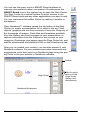
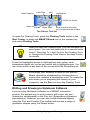
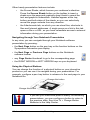
the Screen Shade, which focuses your audience’s attention.
Press the Screen Shade button on the toolbar to insert a
shade over the page and gradually drag it back to reveal the
text and graphics underneath. Handles appear at the top,
bottom and both sides of the shade, so you can selectively
reveal the page contents from any direction.
•
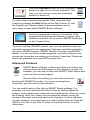
the Attachments tab, on which you can store files, shortcuts to
files and Internet addresses. A single press on a link in this tab
opens a file or a URL, so you have immediate access to external
information during your presentation.
Navigating through Your Notebook Presentation
In any view, you can navigate through your Notebook software
presentation by pressing:
• the Next Page button on the pen tray or the function buttons on the
Sympodium interactive pen display
• the Next Page or Previous Page buttons on the Notebook
software toolbar
• any Page Sorter thumbnail to go to the corresponding page
• the RIGHT ARROW or LEFT ARROW keys on your keyboard
Using the Physical Buttons
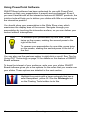
You can change the function of a physical button on your interactive
product so you can use it to navigate during your presentation. For
example, configure a pen tray button to advance to the next page in your
Notebook file.
Change this button
Change this button
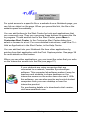
If you use your interactive product mainly for delivering
presentations, you can configure a button to return to
the previous slide. See How To > Change Button
Behavior in the Help Center.
Windows Version
Presenting
59