1
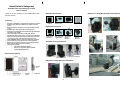
Start to use
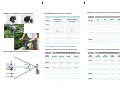
Insert configured SD Card into camera device and
press Power ON/OFF button for 1 second, the Green
LED light is ON for 1 second and then will turn off
automatically means start loading camera settings into
camera device. After 2 seconds, the Green LED light
will be ON again with 2 short beeps. Camera is ready
for recording.
Start recording
Press Record/Stop button for 1second, the camera
device will start recording after 1 second with short beep.
The Green LED flickers, indicating that it is recording.
Save photos from recorded video files
Buzzer:
Buzzer……2 short beeps, camera device is in waiting mode.
Buzzer……1 short beep, camera device starts recording.
Buzzer……2 short beeps, camera device is powering off.
Viewing on a computer
Take out SD card from camera device and insert in your
computer SD card reader. If your computer does not
come with a built in SD card reader, you can purchase
one at your local electronics store.
Playback recorded video files
Stop recording
Press Record/Stop button for 1 second to stop recording.
The Green LED light stops flickering and turn to waiting
mode. The camera device will power off automatically if
waiting mode is kept inactive for 1 minute.
Power off
Press Power button for 2 seconds, then the Green
LED light turn off with 2 short beeps.
You can extract and save photos from recorded AVI file.
Click “Pause” to stop video playback. Click << / >>
forward or backward key to desired image, then save to
folder.
Suggested to copy recorded file to the selected folder
directly through Windows “file manager”, then open
installed AVI Play application and follow below steps.
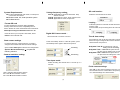
File ÎOpen ÆSelect video file folder ÆSelect file
ÆOpen
The default setting is 0.5 time
Click video screen to enlarge or reduce image
0.5 timeÆ1 timeÆ2 timeÆ0.25 timeÆ0.5 time
File ÎSave Current ÆSelect folder to save desired
picture ÆSave
Motion Search
You can use the “Motion Search” function to fast search
a motion object in a long period time of motionless or idle
recorded video.
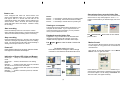
Click “Pause” to stop video playback. Go to “Motion
Search” menu on right hand side.
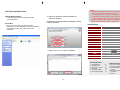
Indication of Green LED Light and Buzzer:
Green light ……always on, camera device is in waiting
mode.
Green light ……flickers, camera device is in working
mode.
Red light ………flashes 3 times then power off, indicates
SD card is not inserted or SD card failure.
Red light ………flashes 3 times then power off, indicates
low memory capacity.
Red light ………flashes 1 time then power off, indicates
low battery power.
1x
0.5x
0.25x
2x
Uses “Search Forward” or “Search Backward” key to
search motion object image. Repeat the step to search
next motion object. You can change “Threshold” value.
The lower value, the higher sensitivity.
{4}