1
10. Print the Drawing
The very last step in the drawing process is to print
your design. It is preferred to use a color printer to
print the color images you have added to your drawing. Since your drawing was completed on an 8-1/2”x
11” you do not need a special printer to do this.
1.
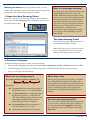
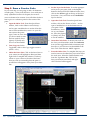
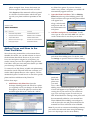
Open the Print Drawing Window: On the Top
Button Bar, select the Print the active drawing
button. In the Print Drawing window that appears, first click on the Printer setup… button to
open the printer settings window.
2.
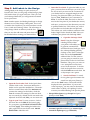
Set the Printer Settings: In the printer settings
window, first select the printer you wish to print
to. Next, select the paper size (for this drawing
choose Letter) and the orientation (choose Landscape). Next, click on the Properties button and
set your print quality to Normal and your color
to Color. Click Ok.
3.
Choose the Color Settings: In the Print Drawing
window, click on the Color tab and make sure it
is set to Print using a single color.
4.
About Printing and Color
When using these settings, the CAD portion of your
drawing will print in B&W and your settings will
over-ride the printer Color settings. Since plant images are not embedded into the drawing, the images
will still print in color as determined by the printer
settings.
5.
Choose the Print Scale: In the Print Drawing
window, click on the Scale tab and make sure
the scale is set to Print using the active drawing
scale.
6.
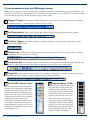
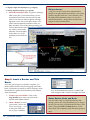
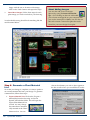
Set the Drawing Preview: In order to see if the
drawing will print correctly, click on the Preview printable area option at the bottom of the
Print Drawing window. When this setting is on
you will see a red box on the drawing window,
just inside your drawing limits (zoom out if you
cannot see the drawing limits). If part of your
drawing appears to be outside the red box, it
will get cut off during printing and you may
need to exit the printing process and adjust your
drawing. If it appears correct, click Print.
Choose the Print Bounds: In the Print Drawing
window, click on the Bounds tab and make sure
the bounds set to Print the area defined by the
drawing limits.
Note: If your drawing does not print as expected, follow these steps again to ensure nothing was missed.
Congratulations! You have just completed your
first DynaSCAPE design.
Quick Start
21