1
3: Get Acquainted with the DS|Design Screen
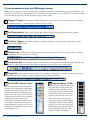
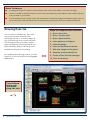
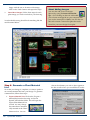
Note: Before you begin to draw, it is important to familiarize yourself with the DS|Design program window. This
will help you find the tools and functions you are looking for as you create your first drawing. You will be referring
to the DS|Design program window pictured on page 4 of this guide:
Program Titlebar: the Program Titlebar displays the name of the drawing currently open (if it displays
‘Untitled Drawing…’, the drawing has not been saved to a file)
Pull-Down Menus: Many of the settings and controls are accessed through the Pull-down Menus.
Visibility Toggles: the Visibility Toggles control the visibility of the Button and Toggle Bars, and the
DynaSCAPE Sidebar folder
Prompt Line: the Prompt Line displays messages from the program about what type of action or input is
required from you to perform a command.
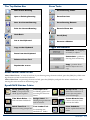
Top Button Bar: the Top Button Bar activates the New, Existing, Save and Print Drawing commands, the
Copy, Cut and Paste commands, the Delete and Repaint tools and all the Zoom commands.
Toggle Bar: the Toggle Bar activates the various Toolboxes, toggles the Constraints and Copy commands,
the line Fill and Ends tools, as well as toggle the drawing Limit and Origin.
6
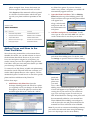
DynaSCAPE Sidebar Folder:
Figures Sidebar Folder:
this is the heart of the DynaSCAPE
program and is the folder which will be
displayed most often as you draw. The
DynaSCAPE folder is divided into four
different areas (in yellow on the screen):
Commands (command icons), Labeling
(labeling controls), Related Tasks
(material list, schedules) and the fourth
area called Controls, which changes its
name depending on which icon is active
beneath it (for example, between Layers/
Styles/Weights, etc.)
the Figures Sidebar Folder controls all of the currently active predrafted symbols (called figures) in
DynaSCAPE. Figures automatically
assume their proper layer and size
relative to the drawing scale when
they are inserted into a drawing.
Although using the default settings
assigned to a figure makes drafting
quicker, you can change any of the
default settings of a figure while you
insert it into a drawing (i.e. Scale,
Rotation, Width and Height).
DynaSCAPE Software