1
LabSpec 5 user manual
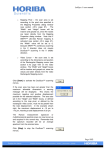
Use same style for all spectra
When “Use same style for all spectra” is ticked all spectra in the current window will share a common
line style, based upon the current setting in the Spectrum dialog window.
If “Use same style for all spectra” is not ticked then the line style setting in the Spectrum dialog
window is applied to the active spectrum only. In this mode it is possible to have multiple spectra
displayed with different line styles.
Line
Select the spectrum display color and (where appropriate) line style for the spectrum using the “Line”
drop down box.
Point size
Select the point size for the “Dot” spectrum display. Note that the point color is set in the “Line” drop
down box.
Available for:
8.11.
Spectrum, SpIm, Point, Model
Cursor
The Cursor dialog window allows control of the cursor behaviour and display format.
Style
Select the cursor style from the “Style” drop down box. The following cursor styles are available:
Spectrum, Model windows
o Line – single vertical line cursor, displaying the X axis position (S) of the cursor and the
intensity (I) of the spectrum at the cursor position.
o Cross – cross hair cursor, displaying the X axis position (S) and Y axis position (I) of the
cursor.
o Level – cross hair cursor which tracks the intensity of the spectrum, displaying the X axis
position (S) and Y axis position (I) of the cursor. In this case, the Y axis position is
equivalent to the spectrum intensity at the cursor position.
o Double – two vertical cursors, displaying the X axis position (S) of each cursor and the width
between the two cursors (W).
o Peak – three linked vertical cursors, the central one locking to the maximum intensity pixel in
a peak, and the outer two locking to the pixels closest to the full width at half maximum
Page | 218