1
User Manual
Document code: MN67216_ENG
CAN Analyzer
Revision 4.110
Page 6 of 24
Electronic Devices
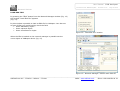
CAN MONITOR:
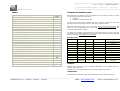
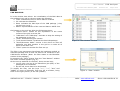
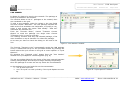
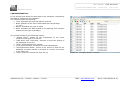
It is the window that allows the visualization of the BUS data at
the package level and its columns mean the following:
Time: indicates the time in which data is received
Id: indicates the Identifier
Data: indicates the data byte of the CAN package ( they
can be from 0 to 8 )
ASCII: representations of the received data in ASCII char.
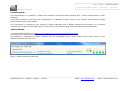
the buttons on the tool bar allow the following actions:
“Export Excel”: allows for the exportation of the entire
content of the grid as a text file.
“CAN Start” and “CAN Stop”: activate or stop the writing of
the packages in the grid.
“Clear” eliminates the grid content.
“Lock Recent Entities” visualizes the last CAN package.
“Scroll/Overwrite Mode”: serves in the choice to write all
packages one after another in the grid or to write all of
them in the same row.
“Filter” opens the window for filter set-up.
The filter is an instrument that allows the hardware module to
eliminate package that it does not want to be visualized in the
CAN Monitor Window. (Note: the filter reacts on the Identifier
section of the package)
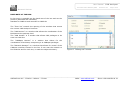
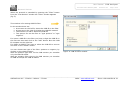
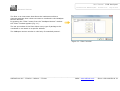
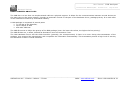
By pressing the “Filter” button from the “Can Monitor” window
the “Filter” window appears (Fig. 4):
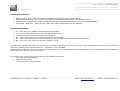
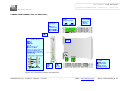
On the set-up windows for the filter, there are two lists:
on the right, the list of the Identifiers ($0-$7FF) of the
packages to be visualized.
On the left, those lists to be eliminated.
To modify the lists, use the keys “<<”, “>>”, “ALL” and
“NONE” to move an Identifier from one list to another, bring
them to the right (shown) or the left (hidden).
Figure 3: “Can Monitor” window
Figure 4: “Filter” window
________________________________________________________________________________________________________________
ADFweb.com Srl – IT31010 – Mareno – Treviso
INFO: www.adfweb.com
Phone +39.0438.30.91.31