1
1.
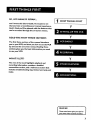
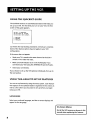
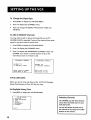
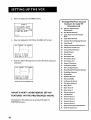
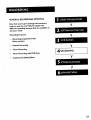
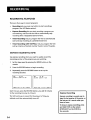
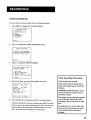
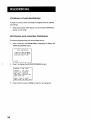
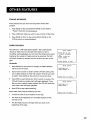
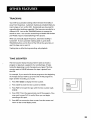
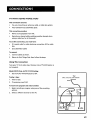
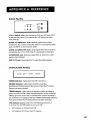
Press MENU to display the VCR MAIN MENU.
1VCR
2.
VCR
MAIN
PLUS+
2
TIMER
3
4
TIME
CHANNELS
5
PREFERENCES
6
LANGUAGE
0
EXIT
MENU
RECORDINGS
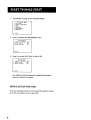
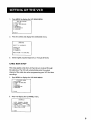
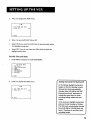
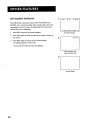
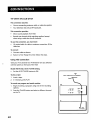
Press 5 to display the PREFERENCESmenu.
PREFERENCES
1 REMOTE
CONTROL:
2 AUTO PLAY:
3 AUTO TV/VCR:
0
VCR1
OFF
OFF
EXIT
Now you are ready to select an item from the menu to set up.
REMOTE
VCR1/VCR2
OPTION
If you own a compatible RCA, GE, or ProScan remote that has
a VCR2, VCR2-LD, or DVDoVCR2 button, this feature allows
you to set this VCR to respond to that button.
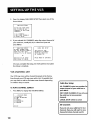
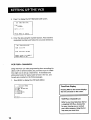
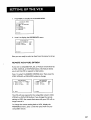
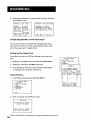
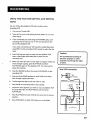
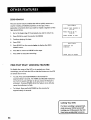
Press 1 to select the REMOTE CONTROL item. Then press the
VCR2, VCR2.LD, or DVDeVCR2 button to change.
(PRESS
2 AUTO
3 AUTO
0
PREFERENCES
VCR2 TO CHANGE)
PLAY:
OFF
TV/VCR:
OFF
PREFERENCES
1 REMOTE
CONTROL:
2 AUTO PLAY:
3 AUTO TV/VCR:
0
EXIT
EXIT
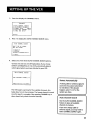
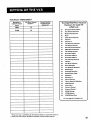
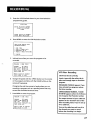
The VCR will only respond to the compatible
VCR2oLD, or DVD-VCR2 button.
VCR2
OFF
OFF
remote's VCR20
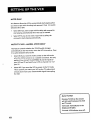
If you change the remote
setting to VCR2, the remote that came with your VCR will no
longer control it.
To change the remote setting back to VCR1, display the
PREFERENCESmenu, press 1, and then press VCR1 on your
compatible
remote.
17