1
Reports
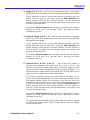
the selection handles.
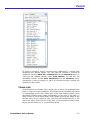
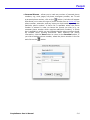
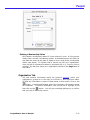
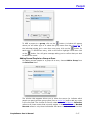
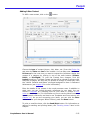
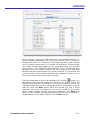
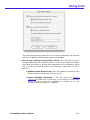
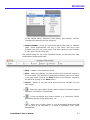
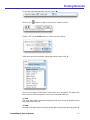
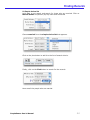
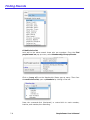
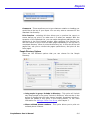
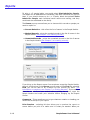
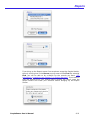
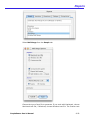
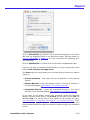
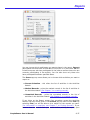
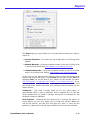
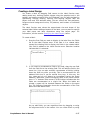
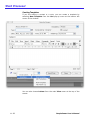
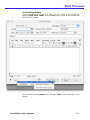
3. To add a text element to the label, enter the text in the Static Text
area and click the arrow
. The static text object is added to the
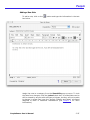
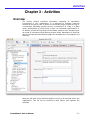
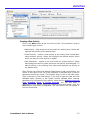
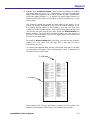
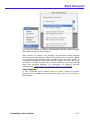
Label Preview area. The following illustration shows a static text
element being added to the label.
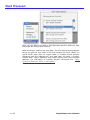
After you add the element to the label, you can reposition it by
dragging and aligning it with other objects.
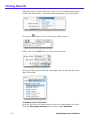
4. (Optional) Using a drawing tool, draw any graphic objects that you
want to add to the label. For example, you could add different
backgrounds to the “TO:” and “FROM:” sections of the label.
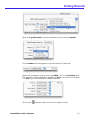
5. (Optional) Paste a graphic from the Clipboard into the Label
Preview area. After you add all required elements to the Label
Preview area, you can use any of the editing tools to modify the
label design.
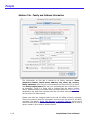
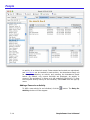
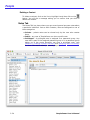
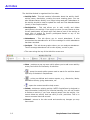
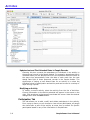
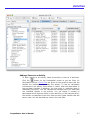
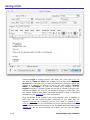
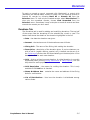
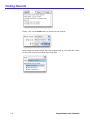
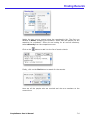
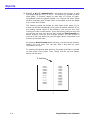
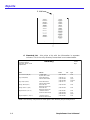
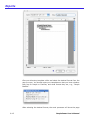
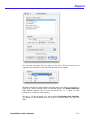
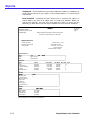
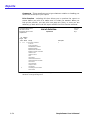
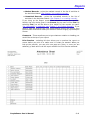
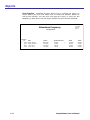
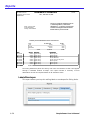
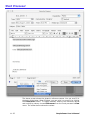
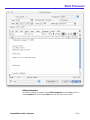
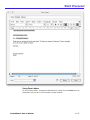
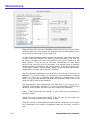
The following figure below shows a completed mailing label.
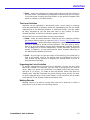
The City, State and Zip have been concatenated on one line and together
they have been vertically concatenated with the Address field. If the
address has more than one line, it will expand to as many lines as
necessary when printing within the size of the combined field. In the
illustration above, note how the combined address field has been expanded
to fill the remainder of the label.
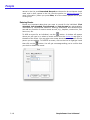
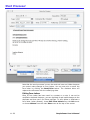
To remove an object, select it and press Backspace (Delete on Macintosh).
The selected object is removed. If the object is a row of concatenated fields,
pressing Backspace removes only the last field in the row. Continue
pressing Backspace to remove more fields from the row.
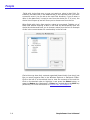
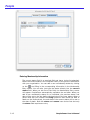
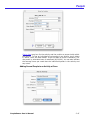
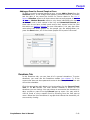
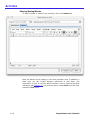
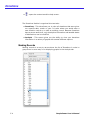
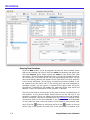
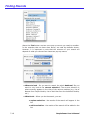
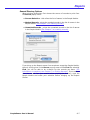
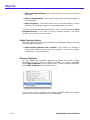
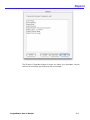
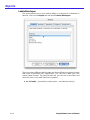
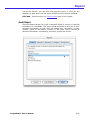
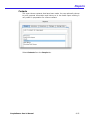
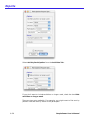
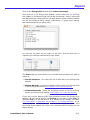
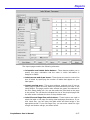
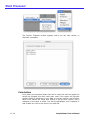
Specifying the Label Layout
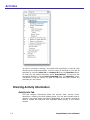
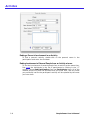
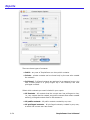
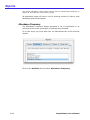
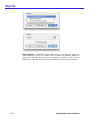
You specify the label layout with the Layout page of the Label Wizard. You
can display the Layout page at any time by clicking its tab.
8-56
PeoplePower User’s Manual