1
Introduction
Passwords is designed to help you store, organise, protect and use sensitive
information like usernames and passwords for websites, PINs, bank details,
serial numbers etc.
Your data is stored in a database which can be password protected (and
encrypted) by a master password. You can change the master password any
time from the main menu.
Note: If you forget your master password you will not be able to access
your information.
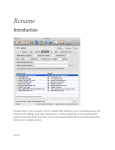
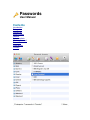
You store your information in categories, which are listed on the left of the
application window, and password records are listed on the right of the
application window.
The toolbar across the top of the window displays commonly used options, some
of which can be accessed via the main menu or by right-clicking the lists to bring
up a context menu.
The auto-complete feature lets you fill in web forms or 'send' information to other
applications with a couple of mouse clicks.
Categories
Categories are containers/folders in which your passwords and other sensitive
data will be grouped and contained. To create a new category, click the first
toolbar button (labeled "Category"), and enter a name for the category. When you
use the app for the first time a few default categories are made for you.
You can edit a category by double-clicking it in the list.
The simplest way to delete a category is to select the category and click the
delete category button on the toolbar. Of course you could always use the main
menu or pop-up menu (accessed via right clicking the mouse in the list).
Passwords
A password record holds the information relative to whatever it is you wish to
store. This application was designed to primarily handle website login
information, but can be used to store other data such as banking details,
credit/debit card details, email login, serial numbers for software you have
purchased etc.