1
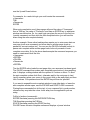
EXPAND Expands the auto-complete window to full view, showing all details
DONTCLOSE Leaves the auto-complete window on screen after auto-complete
finishes
Auto-complete is discussed again later in this manual.
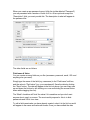
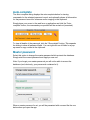
Generate Password (button)
If you can't be bothered to think up a password you can use this option. You will
need to supply some information about what characters you want to include in
the password, and its length. After generating a password, clicking the "OK"
button will automatically place it in the password field for you (where you can
make further changes if you desire) if you check the check box to do so.
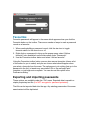
Favourite
Click the star icon to toggle favourite status for this record on or off. Favourite
passwords will appear in the menu which appears when you click the Favourite
button on the toolbar.
Deleting a password
Select the password you want to delete and click the delete button on the toolbar.
It is important to remember that this delete button will delete categories OR
passwords depending on which list is 'focused' when the button is pressed. Of
course you could always use the main menu or pop-up menu (accessed via right
clicking the mouse in the list).
Duplicating a password
This option is available via the main menu or right-clicking the mouse on a
password. It is useful for when you need to create duplicate information in a
number of separate password records.
Moving passwords to another category
Sometimes you may want to move a password to a different category. Select the
passwords you want to move (select multiple passwords by holding down the
Cmd key), the choose "Move passwords" from the menu. You will be prompted to
select a category from a list, and the password(s) will be moved to that category.
Finding passwords
Enables you to search the database for text in password records. The Find dialog
will open, allowing you to enter the text you want to search for. You can perform
a case sensitive search, or a whole word match.
If any matches are found, they will be displayed in the list box. To view any of the
found records, simply select the desired record and click the "View" button.