1
Section 4 - Configuration
1
2
3
4
5
6
7
8
9
10
11 12
13 14
15
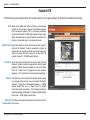
1/2
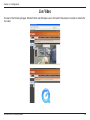
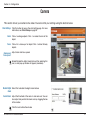
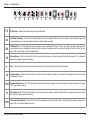
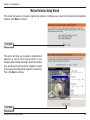
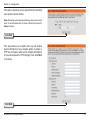
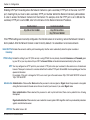
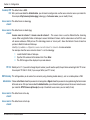
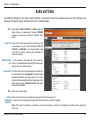
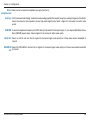
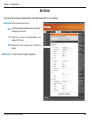
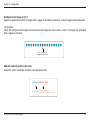
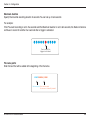
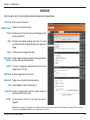
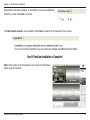
Digital Zoom - Refer to the previous page for more information.
3/4
Start/Stop Recording - Click to start recording. Video clips will be recorded in MP4 format to your computer. Press the button again (#4)
to stop recording. If you close your web browser, the video will stop recording.
5/6
Talk/Stop Talk - Click this button (#5) to talk to people around the Network Camera. If there is an external speaker connected to the
camera and you have a microphone connected to your computer, the people near the camera will be able to hear you. Press the icon
again (#6) to stop talking or close the web browser.
7/8
Resume/Pause - Click this button (#8) to start or pause the transmission of video streaming. Click the button again (#7), the video will
pause. Press again to continue streaming.
9
Stop - Click to stop the transmission of video streaming. Click the resume button (#8) to begin streaming.
10
Speaker Volume - When the mute function is not active, move the slider bar to adjust the volume of the speakers that are connected to
your network camera.
11/12
Speaker Mute/Unmute - Click (#12) to mute the volume of your external speaker that is connected to the network camera. Press again
(#11) to unmute the volume.
13
Microphone Level - When the mute function is not active, move the slider bar to adjust the level of the microphone that is connected to
your network camera (external or built-in).
14/15
Microphone Mute/Unmute - Click (#15) to turn off the microphone (external or built-in) that is connected to the network camera. Press
again (#14) to turn the microphone back on.
D-Link DCS-3415 User Manual
28