1
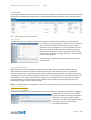
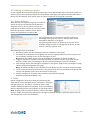
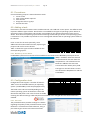
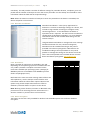
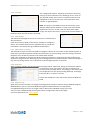
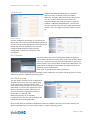
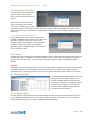
MOBIDM Customer Quick Guide, 4.4. 2012 Page 9 5.2. Editing or deleting a group To edit a group select the desired group and click ‘Edit’. Alternately double click on the chosen group. To delete a group, select the desired group and click ‘Delete’. Deleting a group does not mean that tasks or devices are also deleted. They remain intact only their assignment to the group is removed. 5.3. Group-actions When devices are assigned to a group, a number of actions can be set and executed for all devices in the group. Click on ‘Group actions’ to open the group action window. It shows an overview of tabs. Each tab represents a different action. Not all actions are available for all types of OS. For each group one or more actions can be executed. The advantage of using a group action is that the action will be executed to all devices in the group. Using these group actions is a quick way to send any of the available settings or tasks to a large group of devices at ones without creating a separate task. The following actions are available: 1. Operating system: Sets the operating system for all devices in the group. 2. Enrollment of all the devices in the group: Use to enroll a group of devices at once. Choose how the enrollment message is sent, by text message or e-‐mail. Note: Either the mobile number must be available for each device or the email address. 3. Trigger a connection: Initiates a connection between the devices and the server (only for iOS devices). Used to push new settings to devices instead of waiting for the next heartbeat. 4. Text message: Send a text message to all devices in this group. Used to send a message to a large number of devices assigned to the group. Note: the mobile number must be available for each device in order to receive the text message. 5. Create a new password for device users in this group. Reset the user password to the portal. Only use this if de password is the same for all users in the group. 6. Perform a backup for all devices when a backup task has been assigned. (Symbian and Windows Mobile only) 6. Tasks Device management starts by creating and executing tasks. Tasks can be used to add applications, information, settings or manage security etc. for devices. The portal offers a large number of different options and settings. They are available to devices, depending on the type of device or operating system. Note: Creating tasks and execute them on a device may affect the user. Proper communication about policy changes or different settings is advised to inform users of any changes they me be confronted with. © VeliQ April 2012