1
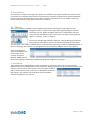
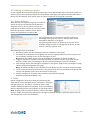
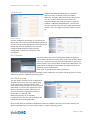
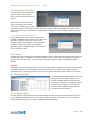
MOBIDM Customer Quick Guide, 4.4. 2012 Page 8 Portal. The portal shows a list of available Apps. Click ‘Install’ to download and install Apps on the device. For more information about the Personal Enterprise Apps Portal is found in the MobiDM wiki. wiki.mobidm.com 4.1.10. Usage monitor When enabled, the device logs the usage of voice, data and text messaging. Data usage is logged per day, together with the used APN and roaming information. 4.1.11. APN settings: This tab provides the configuration to connect a device to a Wireless network. To set the APN for multiple devices use a config task. (See chapter 6.4.7) 4.2. Identity manager*
This feature ensures a close relationship between the device and the business network environment. Identity manager makes it possible to exchange credentials from the internal fixed network (Active Directory) to the portal, enabling mail and PIM information to be exchanged between the mail server and the device. Using credential management sets the security policies for MobiDM according to the same level and policy of the internal network. * Identity manager is part of the Mobile Integrated Cloud. Different installation procedures are required. Consult additional information about Mobile Integrated Cloud. More information will be available on: wiki.mobidm.com 5. Groups
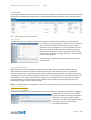
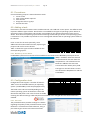
In order to manage devices or enable tasks to be executed on multiple devices, they need to be assigned to at least one group. Add all the necessary groups and assign the devices to at least one of these. For example, create a group for each type of operating system. Devices can be assigned to more than one group. Remember that each device must to be part of at least one group in order to receive tasks and settings. 5.1. Add a group
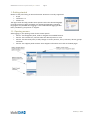
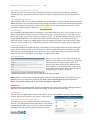
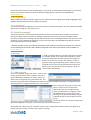
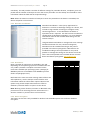
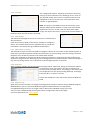
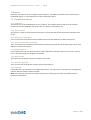
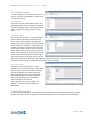
To add a new group, simply click ‘New’, enter a name for the group and click ‘Save’. Choose a name for a group indicating its purpose. For large numbers of devices the list of groups can grow extensively. The name of a group will help to distinguish between the purposes of different groups. It could indicate the operating system, anorganizational unit or a user profile. After saving the new group a new screen opens. Use this screen to select the devices that are to be assigned to the group. To add a device to a group, select the desired devices and click the arrow pointing to the group. Alternately drag the selected devices to the left panel into the group. On the left side is an overview of tasks that have been assigned to the group. (See chapter 6 for information about tasks.) Remember that a device can be a member of more than one group but a device must be assigned to at least one group in order to receive tasks, Apps or settings. © VeliQ April 2012