1
Getting
Step
I:
Turning
on
the
Step 2: Finding the correct
viewing channel
DVD
system
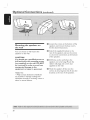
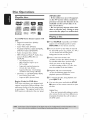
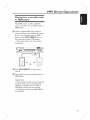
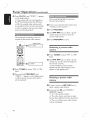
@ Press the SOURCE
button
on the front
panel repeatedly to select :
DISC _ NP3 DIRECT _ FN _ AN _
TV _ AUX _
_
8Yo[+
)
Started
Before
you
start
...
Make sure you have completed
necessary
connections
before
DI _ DISC ....
@ Press
oJIK_
SOURCE
appears
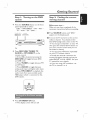
@Turn
button
on the display
until "DISC"
panel.
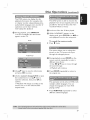
on the TV and set it to the correct
video-in
channel.
You should
blue DVD background
screen
....
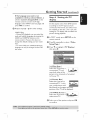
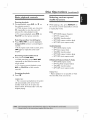
_ You may go to Channel
then press the Channel
TUNER,
DIRECT
TV,
on the
remote control
pressing the
DISC/USB
will toggle between
and USB mode.
....
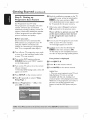
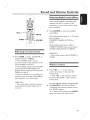
÷ Press TUNER
and AM band.
FM
....
÷ Press AUX/DI
to toggle between
analog audio input and digital audio input.
-) Press PIP3 DIRECT
audio tracks from
to playback the
your portable
audio/
HDD player which is connected
DVD system.
to this
f
!'_"_-'_'-_i
_--_--_--_-
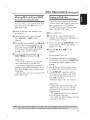
@ Press
STANDBY
ON
....
÷ The display screen
(O).
will turn off.
button
on
button
on your TV's remote
control.
repeatedly
is between
the
lowest and highest channels and may be
called FRONT, AJV IN, VIDEO. See your
TV manual for more details.
DISC
to toggle between
on the TV.
until you see
....
_ You may press _
....
_ Usually this channel
....
_ If the USB is detected,
see the
I on your TV,
Down
your TV's remote
control
the Video In channel.
Or
Press DISC/USB,
AUX/DI
or HP3
all the
proceeding.
....
÷ If you are using a RF modulator,
the TV to channel 3 or 4.
set