1
Text Designs
4-5
Spacing
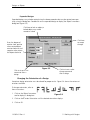
Sometimes text is too crowded or too loosely
spaced. This often happens to arc lettering (see
Figure 4-12). Use the following techniques to
adjust spacing.
Uniform Spacing
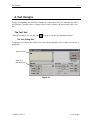
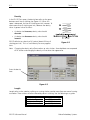
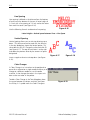
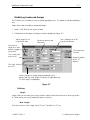
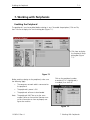
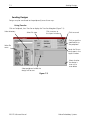
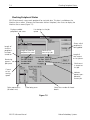
At the Text dialog box, locate Spacing in the middle
right corner. Under Spacing is an option which
allows you to increase or decrease the distance
between all the letters in your text by a uniform
amount. With letters of 0.75 inches in height,
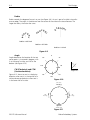
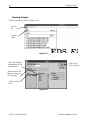
adding 0.10" helped the spacing, but the E M B letters at the lowest part of the arc are still too close.
If more horizontal spacing is added, some of the
other letters would be too far apart. Now customized spacing is needed.
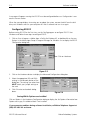
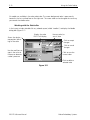
Figure 4-12
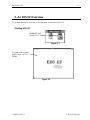
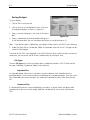
Figure 4-13
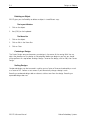
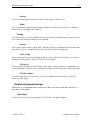
Customized Spacing
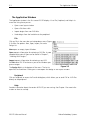
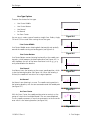
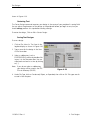
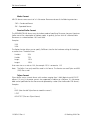
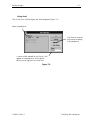
Place the cursor between the letters needing space added, then
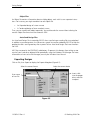
press F8. A » symbol appears between the letters (Figure 4-14).
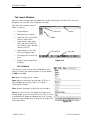
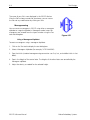
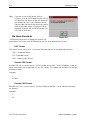
Repeat as needed until spacing is adequate (Figure 4-15).
Figure 4-14
Each » adds a space equal to 1/16 of the letter
height. For example, with a 1" letter the space
would be 1/16". With a 0.5" letter, the space
would be 1/32".
Figure 4-15
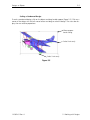
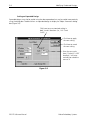
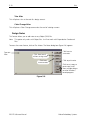
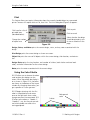
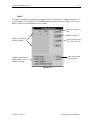
Deleting Space with the F7 Key
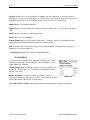
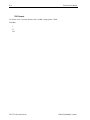
You can decrease the space between letters that are too far apart in a similar manner. In the Text
dialog box, place the cursor between the letters that are too far apart and click. Press F7 and a «
symbol appears between the letters. Click OK to move the letters closer together. Each « subtracts
a space equal to 1/16 of the letter height.
110362-01 Rev. A
4. Text Designs