1
© Florida Solar Energy Center, 2012
Program Overview
(Back to Table of Contents)
Q. What does EnergyGauge USA do?
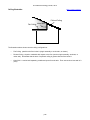
A. EnergyGauge USA is a multifunction residential building tool. The available versions provide the following
calculations and features:
-
The Florida Code version, FlaRes, provides 2010 Florida Building Code, Energy Conservation
Prescriptive and Performance compliance calculations and forms. For specific information on using
EnergyGauge USA for Florida Code compliance calculations, see the Florida Code Compliance
Calculations with EnergyGauge USA FlaRes section.
-
The standard version, ResSim, includes DOE2.1E simulation for design of low-energy buildings and
evaluation of hourly peak demand impacts and determines compliance with the International Energy
Conservation Code (IECC-1998/IECC-2000, Chapter 4 of the 2003 IECC, and Section 404 of the 2004
IECC and 2006 IECC) and Florida Energy Code compliance.
-
The Pro version, ResSim Pro, adds pollution analysis and a Tax Credit Summary Report that provides
qualification criteria for Energy Policy Act of 2005 tax credits.
-
The rating version, ResRate Pro, includes all of the above plus Home Energy Rating System (HERS)
rating capabilities (available only to certified Energy Raters).
-
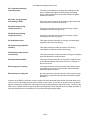
A SizePro version adds a Manual J 8th edition System Sizing feature to the Pro version that calculates
whole-house or room-by-room (zoned) heating and cooling loads.
For more information on available EnergyGauge versions refer to the www.energygauge.com web site.
Q. How is the software organized?
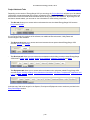
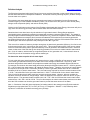
A. There are two main segments in EnergyGauge USA: Project Search and Project Notebook. There are a
number of other program windows, but everything else stems from these.
-
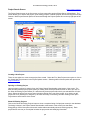
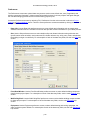
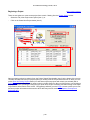
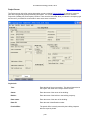
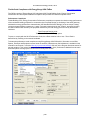
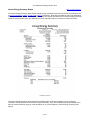
Project Search: this is the entry window that you will see every time you start the program. From this screen
you gain access to the projects database. You can also create a new project, find (by selection or query) and
open an existing project or exit EnergyGauge USA.
-
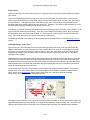
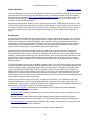
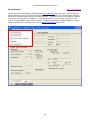
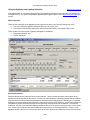
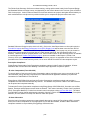
Project Notebook: this is the primary work area where project and building data are entered. Each project in
your database has its own Notebook. Each Notebook includes four tabs: Site, Spaces, Envelope, and
Equipment, with a total of 24 subtabs. Each subtab has a corresponding data entry screen, one for general
project data and one for each of the 23 building components affecting energy use. At the bottom of the
Project Notebook, you will see notebook tabs that allow immediate access to any segment in the Notebook.
By clicking on a tab, you can enter or view information describing that building component.
The menu bar in the Project Notebook includes File, View, Calculate, Reports, and Help options. These
menu bar options allow you to access all EnergyGauge USA features. See the Project Notebook menu help
section for detailed information.
Q. How do I input a new building?
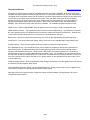
A. Start from the Project Search screen that comes up when you first open EnergyGauge USA. To start a new
project, you can rename an existing project and modify the entry fields as required, or create a new project. For
help loading other buildings (existing building (.enb) files, see the Project Search screen help section.
To start a new project from scratch, click on the Create New Project button in the Project Options sections in the
top right corner of the Project Search screen. Once this button is clicked, the Project Notebook is opened with
the preset Preferences. To start a new project by modifying an existing project, open the desired existing project
in the Project Search Results database and select File | Save Current Project As... from the Project Notebook
menu options. Then rename the project at the prompt.
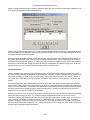
Once you're in the Project Notebook, complete (or modify) each component screen. Each screen has a
corresponding Help page with entry guidance for individual data fields. EnergyGauge USA also has extensive
error checking, so if you forget to input some data, the software will prompt you. If an error is found,
p7