1
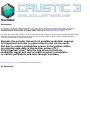
Navigation
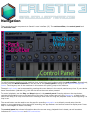
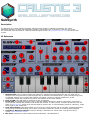
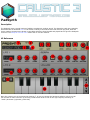
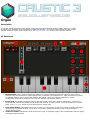
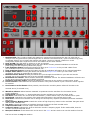
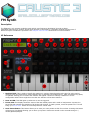
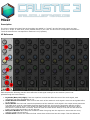
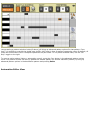
There are three main components to Caustic's user interface (UI). The rack scrollbar, the control panel and
the machine view.
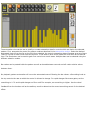
To switch between machines in the machine view, touch then scroll up/down with the rack scrollbar. Alternatively,
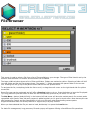
you can press the Machine Button on the left side of the control panel to bring up the Machine Management
screen. Touching any one of the machines in this screen will quickly jump to this machine.
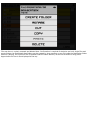
The app's main menu can be accessed by pressing the menu button in the control panel at any time. If your device
has a menu button (Android only), this will also show the menu when pressed.
To control playback, use the Play and Stop buttons in the control panel. Pressing twice on the stop button
rewinds the playback cursor to the beginning of the loop if loop cursors are set in the Sequencer, or back to the
start of the song if no loop cursors are set. Pressing a third time will bring the playback cursor to the beginning if a
loop is set.
The record button can be used to arm the app for recording automation or to directly record notes into the
pattern or song sequencers. Once armed for recording, the app flashes a red outline around its display area. Press
stop or record again to disarm recording.
The control panel also shows information about the current song, playback time in beats, as well as status
indicators for Caustic Connect and MIDI connections.