1
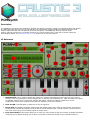
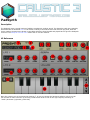
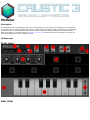
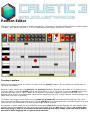
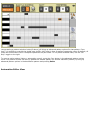
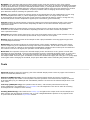
To adjust the position of a note trigger, touch and drag it to the desired position. (Size button must not be active)
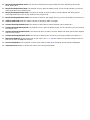
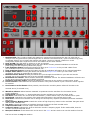
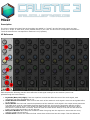
To scroll the piano roll up and down in octaves, touch and drag up/down in the side keyboard(9). Hold a note in
the side keyboard(9) to hear a preview of it in the linked machine.
If the pattern spans more than one measure or the grid is zoomed in past 16th notes, a horizontal scroll bar will
appear to allow for quick navigation in the time axis.
To select a note trigger, simply touch it. Double-tap a note to quickly delete it. See below for selecting multiples
notes.
The right-hand side panel will change depending on what mode is selected.
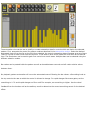
To edit the selected note's properties, press the Note mode button (6). To change selected note velocity
(volume), use the velocity slider(11) to adjust velocity from 5% to 100%. When the velocity slider is active, an
indicator above the slider will show the current velocity value. The note trigger in the piano roll window will also
reflect velocity by changing its opacity.
Some machines offer additional note options like accent and glide. Accent gives note triggers an extra volume boost
and glide will bend between note values without re-triggering the volume envelope.
Tip - Advanced Glide: Only monophonic machines can glide (ex: bassline and modular) but setting the
polyphony down to 1 on any synth which allows you to do so will enable glide notes. To control the
length of a note glide, overlap the first note with the second note. The second note will still trigger at
the correct time, but the synth will use the overlap portion of time as a duration for the glide between
notes. See the Advanced Glide tutorial for examples.
To select multiple notes, press the Select mode button (7). If a note is selected, pressing Multi will allow you to
add and remove random notes by touching them. All selects all notes in the pattern, and None clears the selection.
The number of selected notes will appear in the select button's selection icon.
To use lasso select, press the Lasso button then touch/drag to form a selection around the notes you wish to
select. Lasso selection is reset after each selection so press it each time you wish to create a new selection. In case
the pattern spans more than one measure, drag the selection to the edge of the screen and the pattern will
automatically scroll.
To use time select, press the Time button then drag to form a selection on the time grid for the notes you wish to
select. Time selection is reset after each selection so press it each time you wish to create a new selection. In case
the pattern spans more than one measure, drag the selection to the edge of the screen and the pattern will
automatically scroll.
To copy or paste selected notes, press the Edit mode button (8). The Copy button will place the selected notes
into the app's clipboard. notes can then be pasted into the same pattern, another pattern, or another machine's
pattern (if the notes are within that machine's range) using the Paste button. When copying into the same pattern,
a paste destination cursor will appear at a value rounded up by one beat. The paste destination cursor can be
moved by dragging the lower arrow handle or removed by pressing the upper "X" button. Newly pasted notes can
be dragged to move them to a new position. In case the pattern spans more than one measure, dragging the
selected notes to the edge of the screen will cause the pattern to scroll automatically.
To remove selected note triggers, select them using one of the selection tools, then press the Delete (X) button
(12) in the lower-right corner. To quickly remove a single note trigger, double-tap it.
To undo or redo past actions, use the Undo and Redo buttons.
Pattern Options