1
only a snapshot of the specific criteria sent to the client in the
past.
Edit Listing Alerts
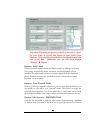
This page allows you to select the exact criteria your lead is interested in for
their new property. If a change occurs on either of those pages, it will also
occur here. The best time to create a listing alert would be during a Vulcan
dial session. While on the call with this lead you are able to narrow down
and create a specific search that they are interested in.
Please note: this page is identical to your "advanced search"
dropdown on your consumer site, as well as the “ideal leads”
page. The fields in “listing alerts” are customized for your
MLS and are interchangeable based on the needs of your
clients and your team.
Communications Timeline
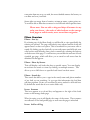
Communications Timeline acts as a snapshot of the lead history for easy
viewing. It also allows you to filter exactly what you are interested in seeing
(Emails, calls, Notes, Visits, Showings, Listing Alerts) by default all filters
are available to be viewed, but if at any time you want to view a specific
filter just uncheck the box. If you share or transfer a lead the new agent
should be able to get up to speed very quickly by reviewing the
communication timeline for the lead.
Drip Plans
Drip Dashboard
We structure our drip plans in 3 parts.
You have your own plans, called "my plans', you have team plans - which
are shared within your own team/brokerage, and we have "shared plans" these plans are uploaded via the whole Team Leads community.
If you don't want to create a custom plan for yourself, we have a whole
library of plans available in the "shared plans" section that you can copy
over to your plans. Upon doing so you will be prompted to customize and
or edit your copied plan to ensure you only send intended material to your
clients. You can copy over as many plans as you would like however a plan
will only be sent to your clients once it’s set to "active".
20