1
March 3, 2011
Apteryx Imaging
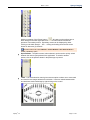
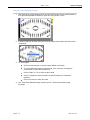
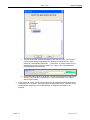
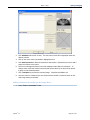
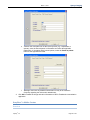
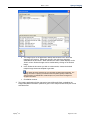
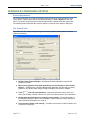
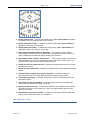
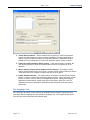
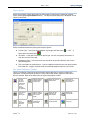
- Select to magnify or reduce the image in the preview. To increase the
magnification of an image, click on the image in the preview with the left mouse
button. To reduce the magnification, click with the right mouse button.
- Select to automatically resize the image and make it fit in the viewing
area.
- Select to automatically resize the image in the preview to 100%
magnification. When clicked, the image in the preview will resize to the actual
dimensions of the image.
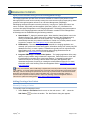
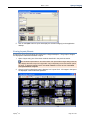
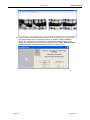
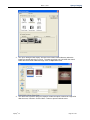
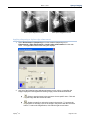
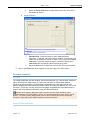
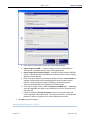
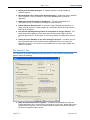
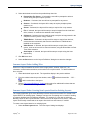
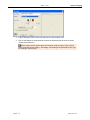
3. Select a predefined „Mask Size‟ … OR … select
to manually enter a custom „Width‟
and „Height‟. The mask size specifies how large the area should be when sharpening a
portion of the image. The larger the area, the wider the area of noise is considered to be.
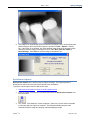
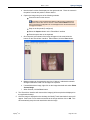
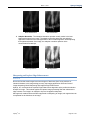
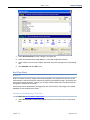
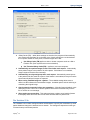
4. Click OK to apply the settings to the open image.
5. On the main menu, click on Undo (
… OR ... Save (
) to remove the enhancement applied to the image
) to store the changes.
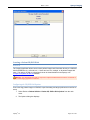
Image Macros
Overview
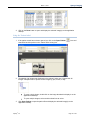
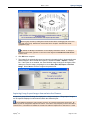
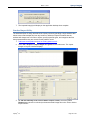
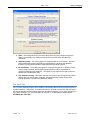
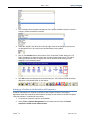
Image Macros allow users to create a customized sequence of enhancements/filters that can be
applied to images.
Creating/Adding a customized image macro
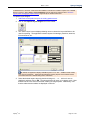
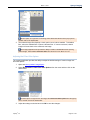
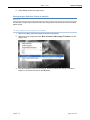
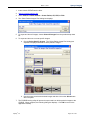
1. Open a patient image.
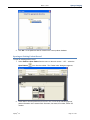
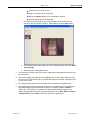
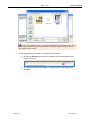
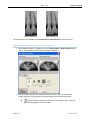
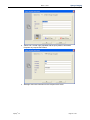
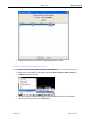
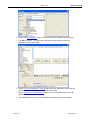
2. From the menu, select Enhancements > Image Macros > Edit Macros.
Apteryx®, Inc.
Page 58 of 147